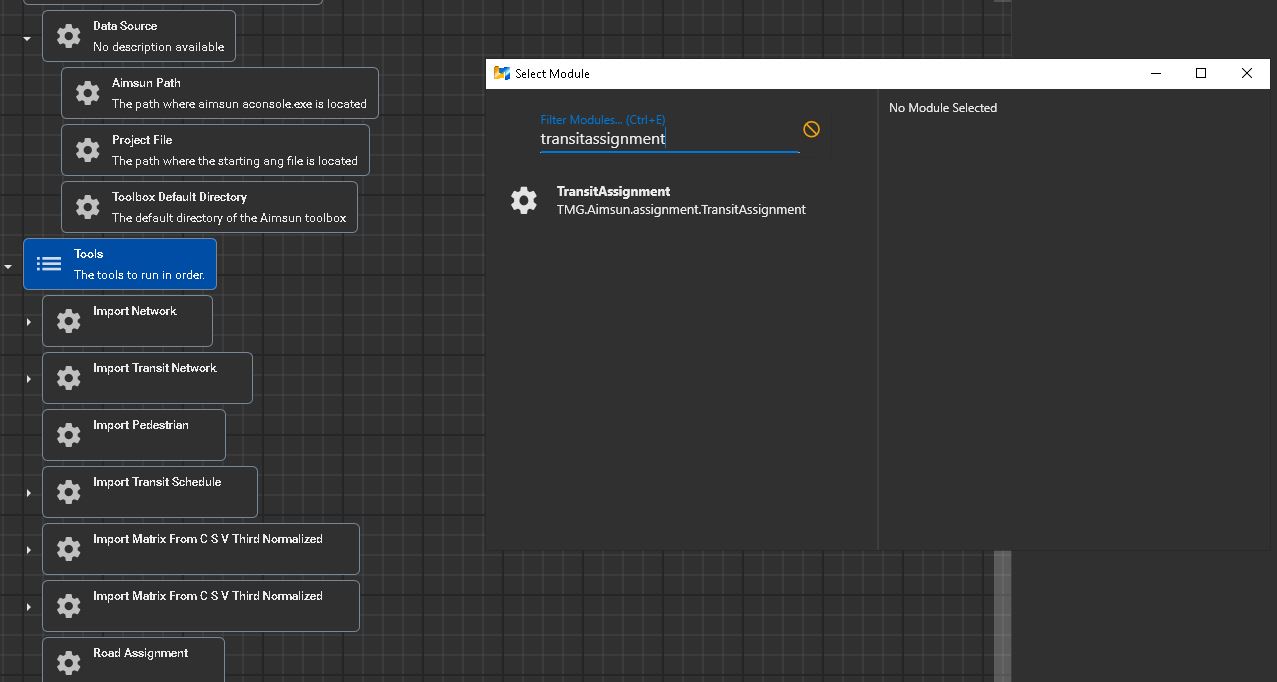
Tools
Overview
In this tutorial we build a network. At the end of this tutorial all tools will be successfully imported
1. ImportNetwork
- Step 1: Right-click on "Tools" and select "Add Module" or Press "Ctrl"+"M"
- Search for the term "ImportNetwork" and add that module to the tool
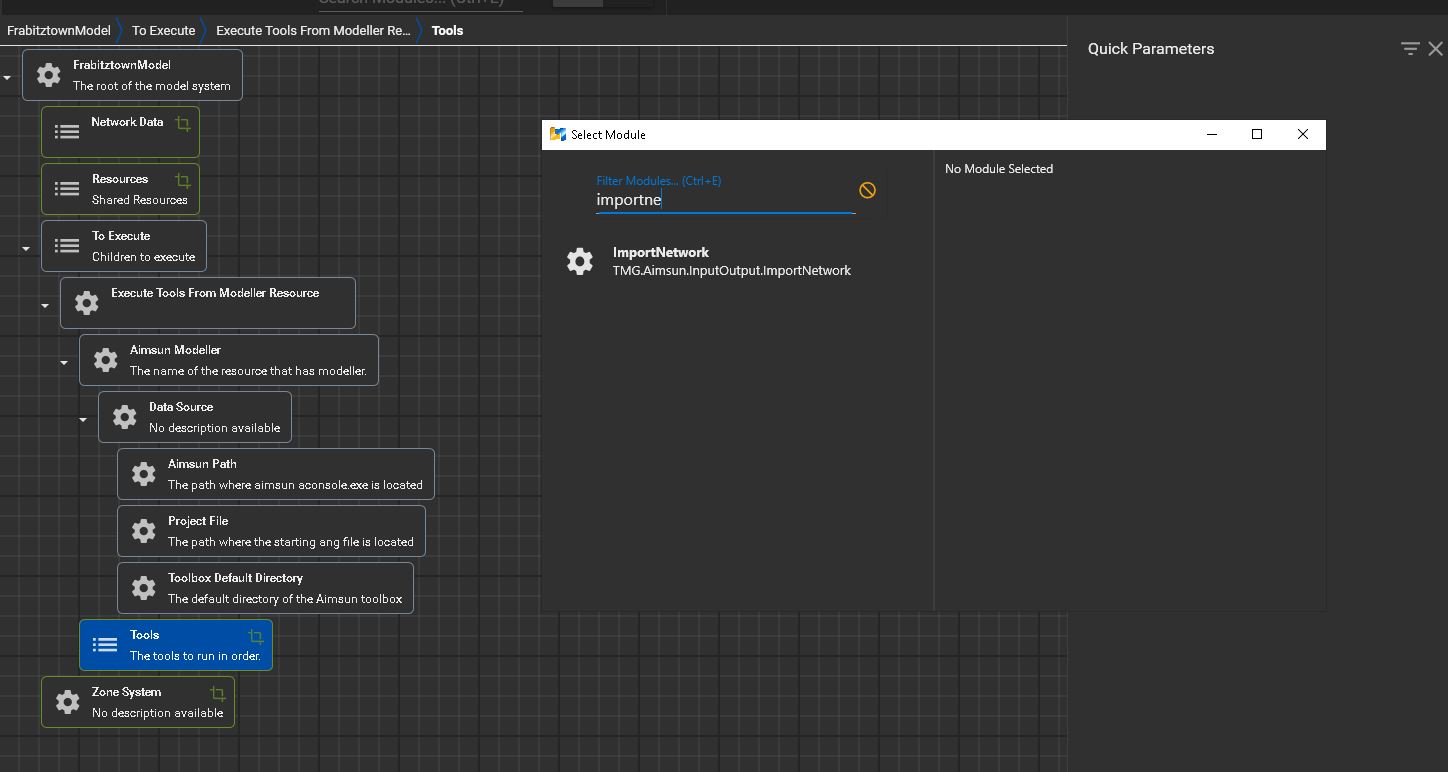
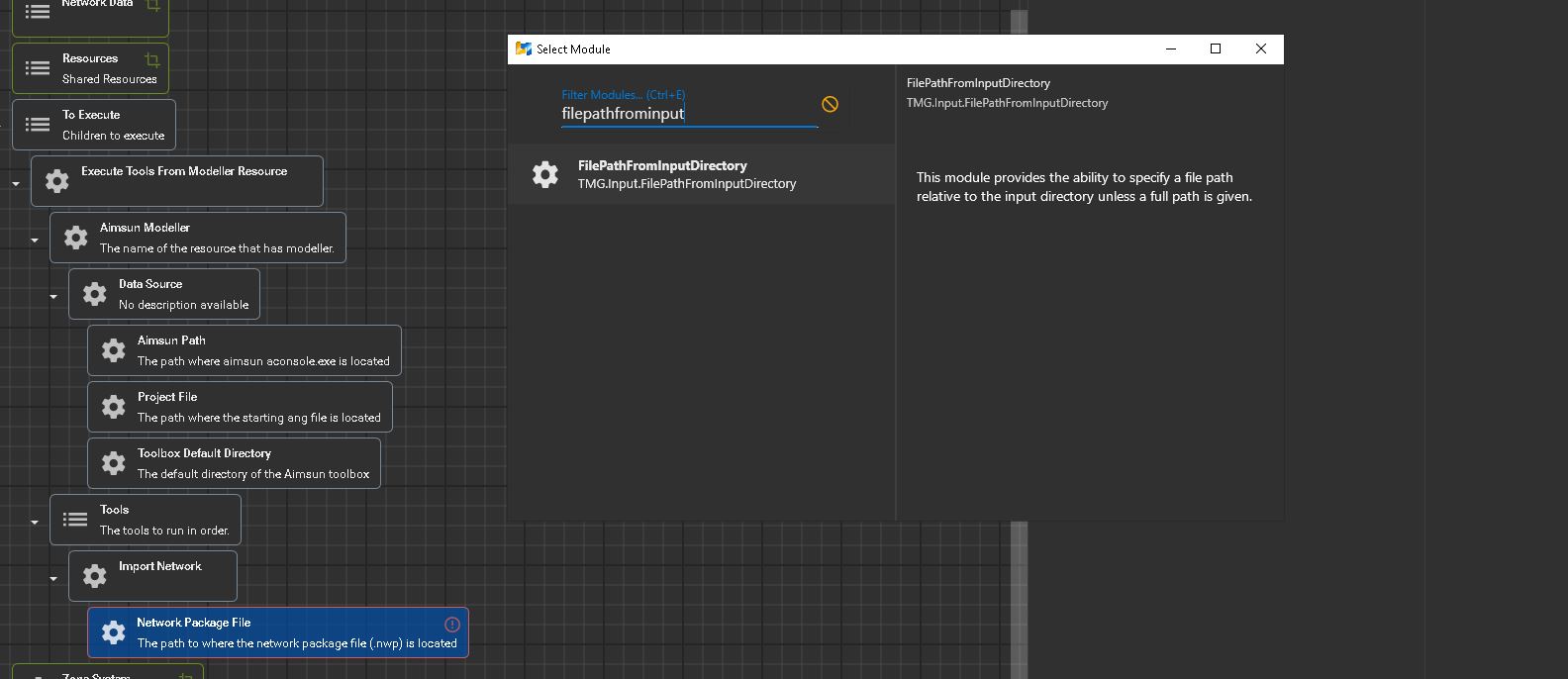
- Step 2: Right click and on NetworkPackageFile and Add Module
- Click on "FilePathFromInputDirectory" and add that module
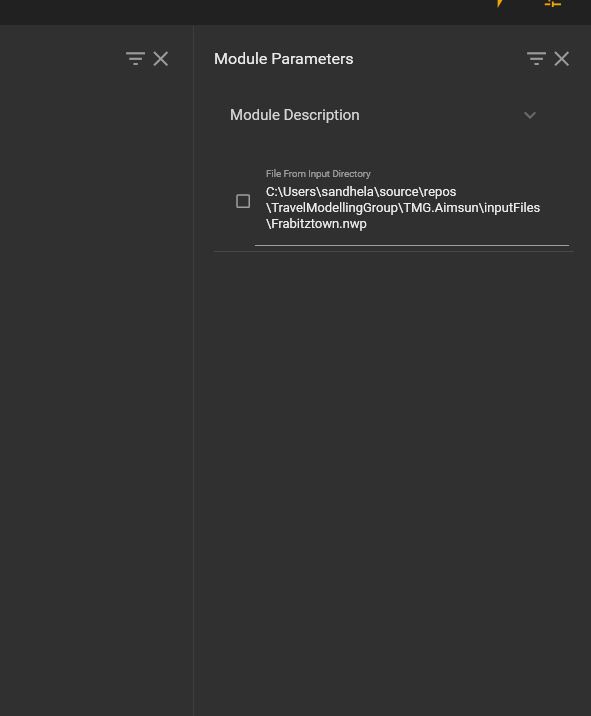
- Step 3: Copy paste in the path to the network package nwp file location
2. ImportTransitNetwork
- Step 1: Right-click on "Tools" and select "Add Module" or Press "Ctrl"+"M"
- Search for the term "ImportTransitNetwork" and add that module to the tool
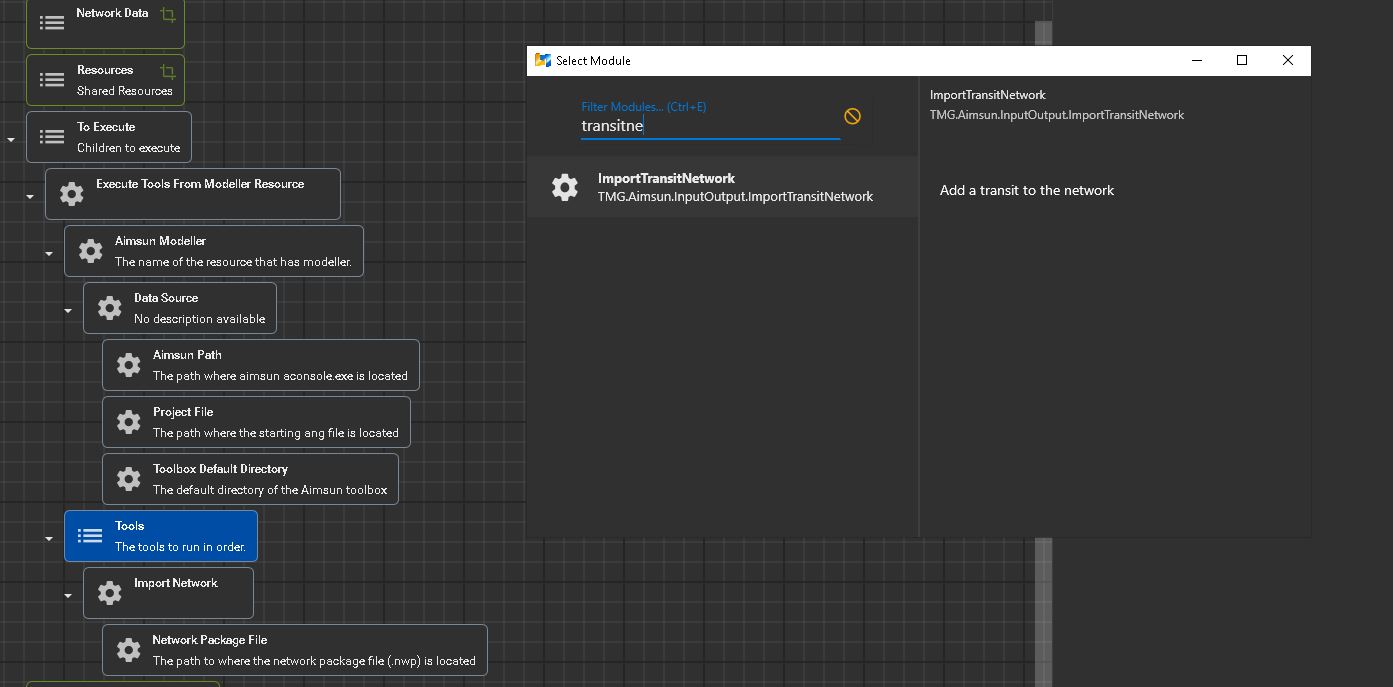
- Step 2: Right click and on NetworkPackageFile and click Add Module
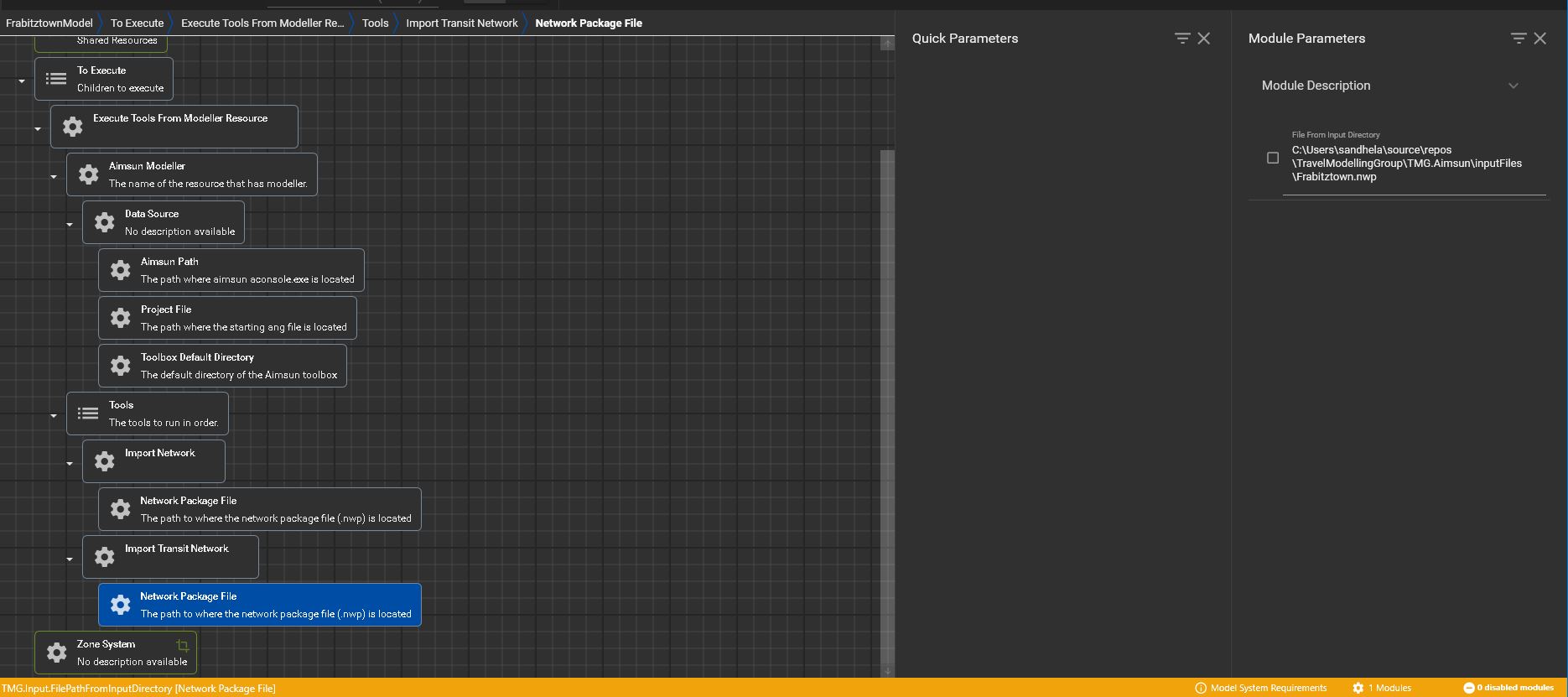
- Click on "FilePathFromInputDirectory" to add the module
- Copy the networkpackage directory to the page resulting in the output as shown in the screenshot below
3. ImportPedestrian
- Step 1: Right-click on "Tools" and select "Add Module" or Press "Ctrl"+"M"
- Search for the term "ImportPedestrian" and add that module to the tool
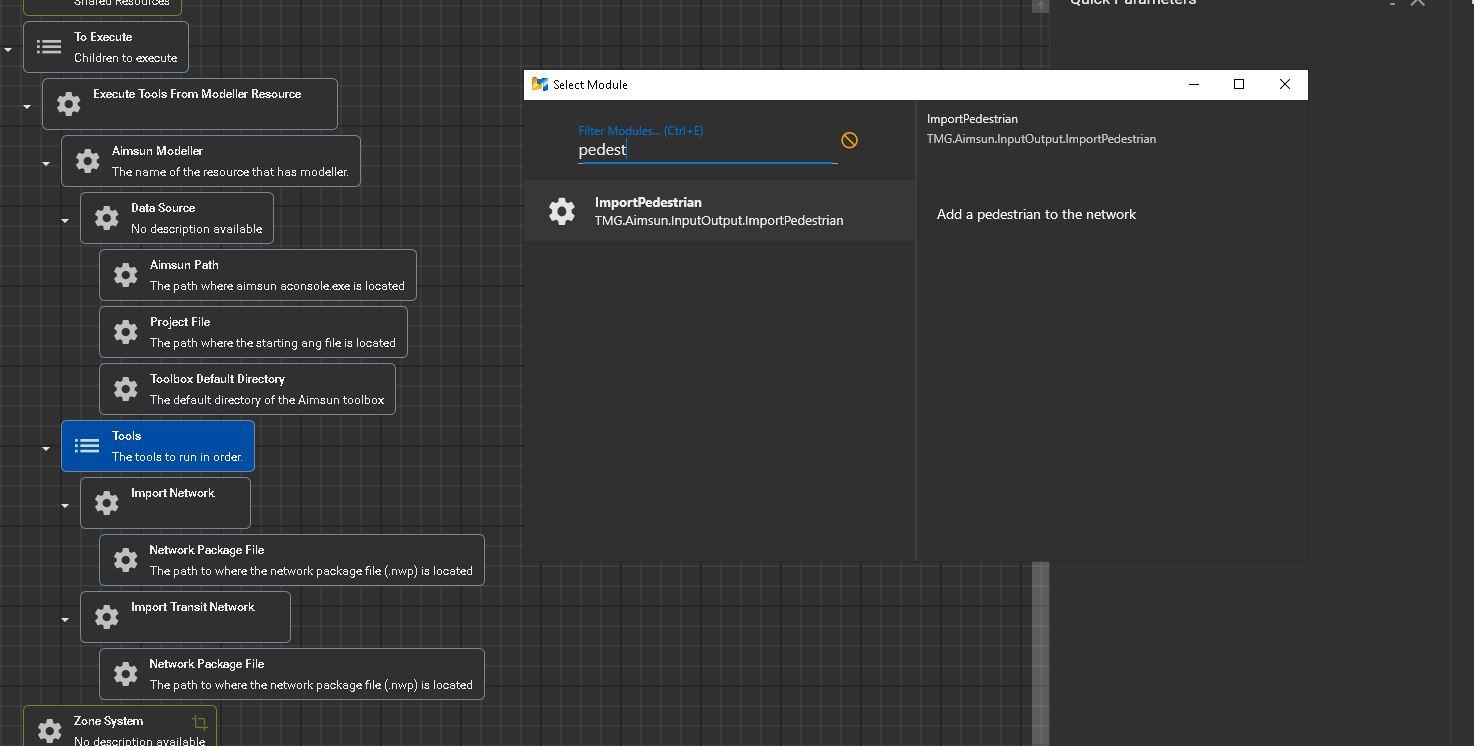
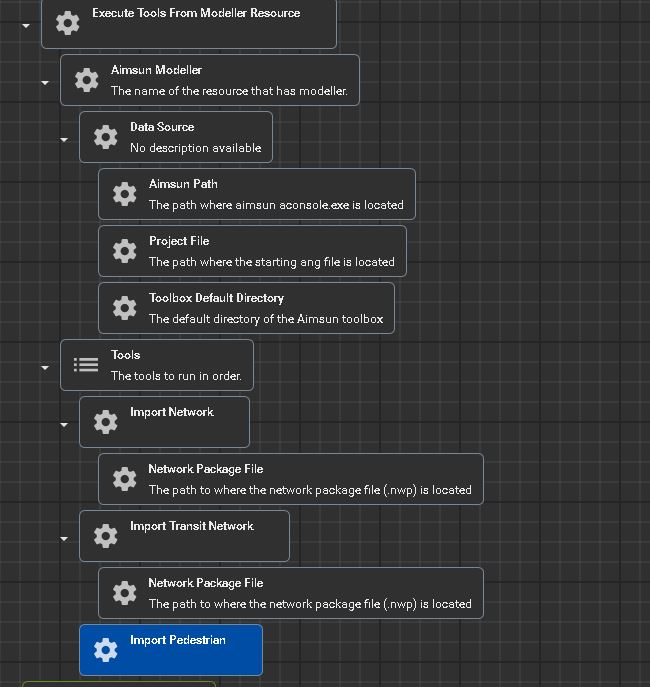
** Note that for ImportPedestrian tool no further submodules are needed to be added as shown in the screnshot below
4. ImportTransitSchedule
- Step 1: Right-click on "Tools" and select "Add Module" or Press "Ctrl"+"M"
- Search for the term "ImportTransitSchedule" and add that module to the tool
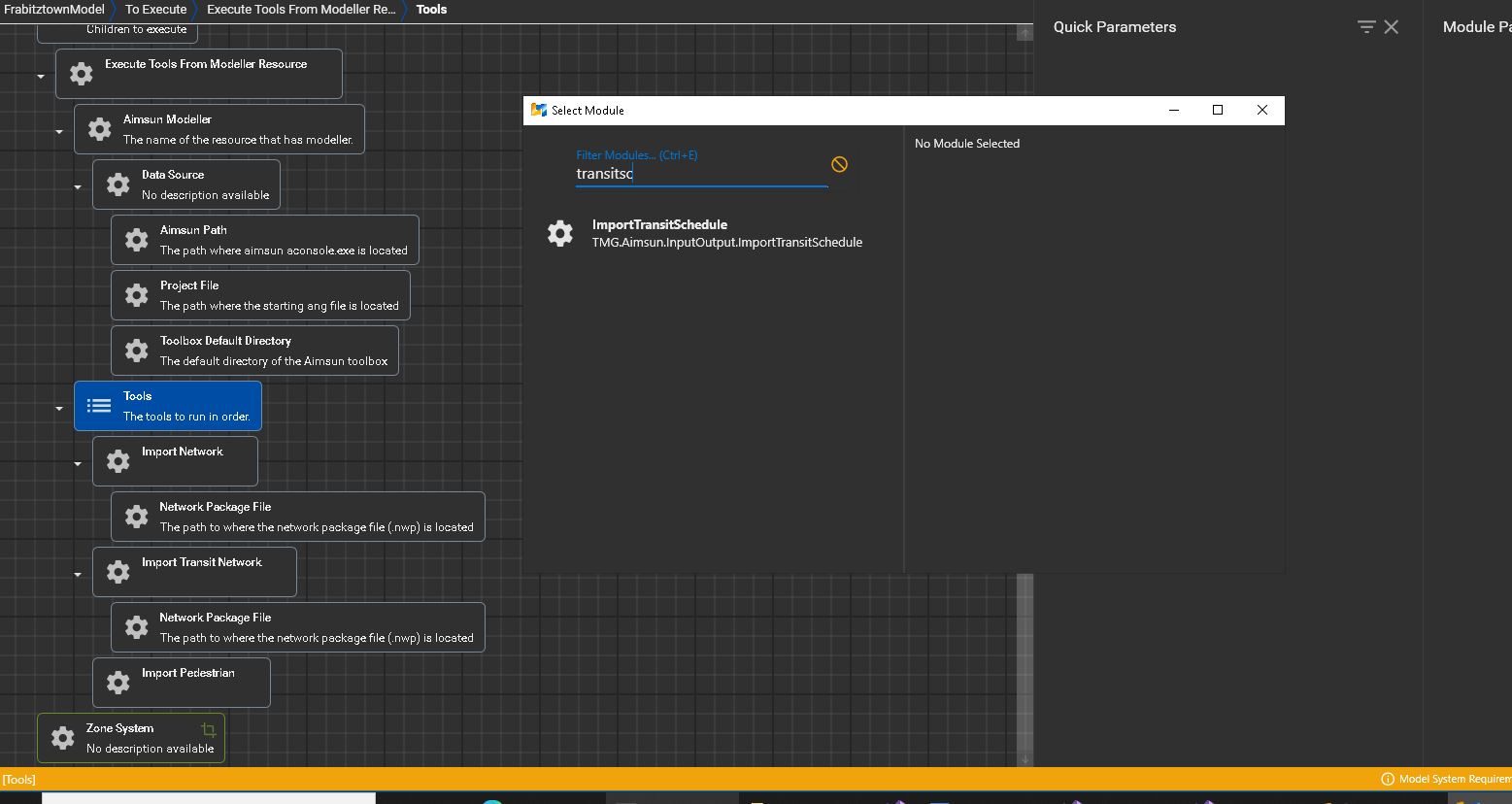
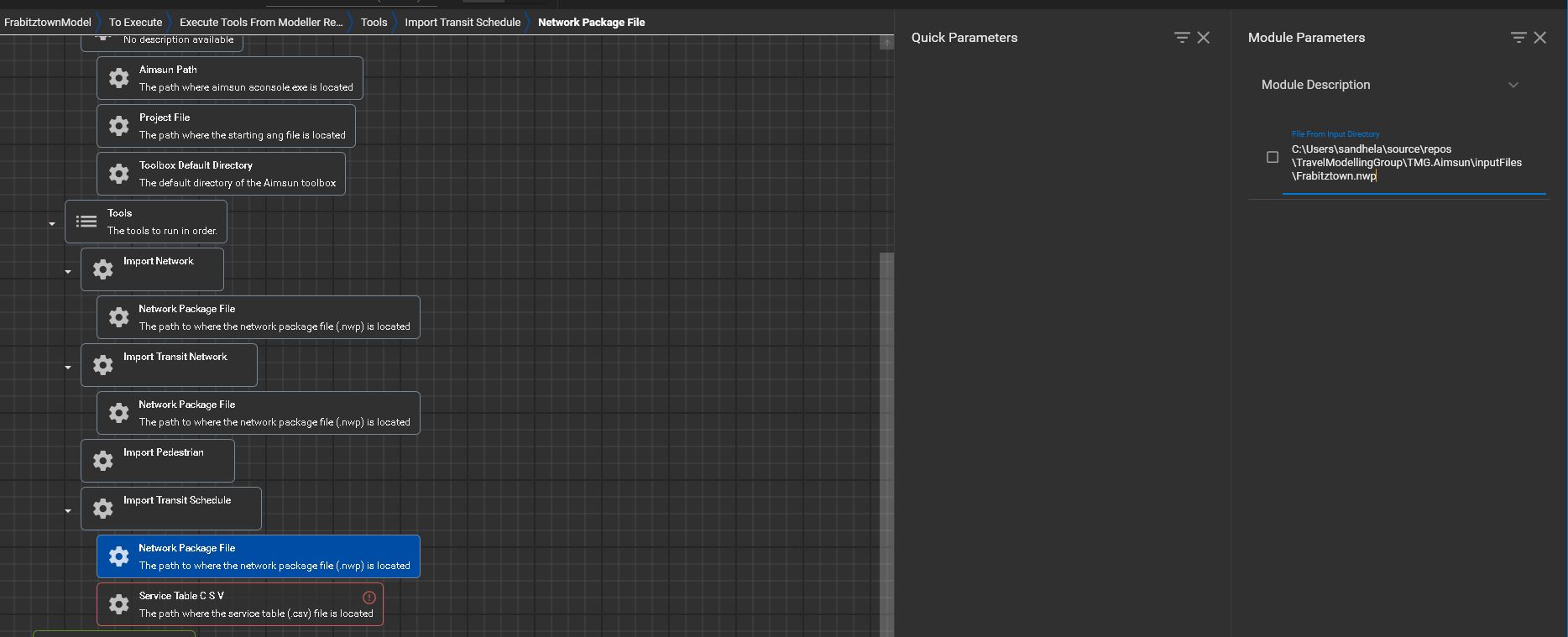
- Step 2: Right click and on NetworkPackageFile and Add Module
- Click on "FilePathFromInputDirectory" to add the module
- Step 3: Copy paste in the path to the network package nwp file location as shown in the screenshot below
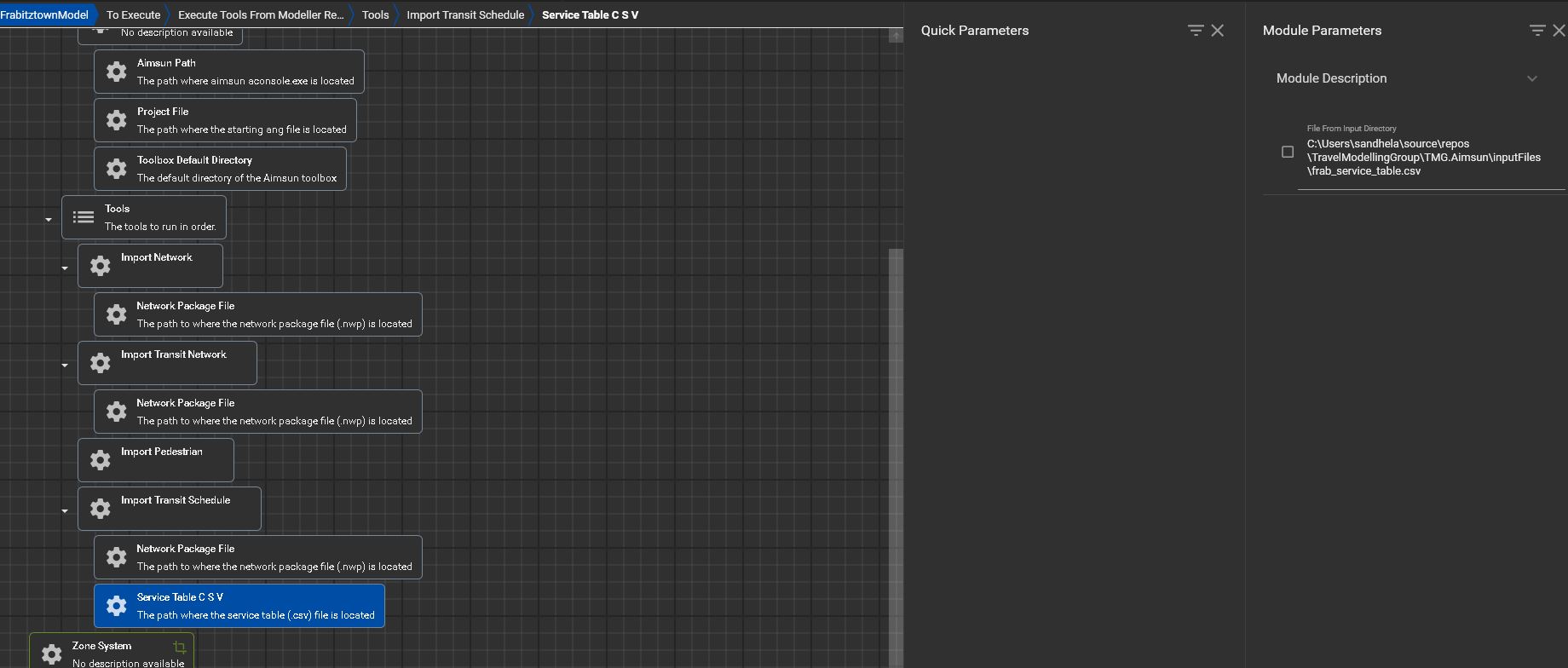
- Step 4: Right click and on ServiceTable CSV and Add Module
- Click on "FilePathFromInputDirectory" to add the module
- Step 5: Copy paste in the path to the service table csv file location as shown in the screenshot below
5. ImportMatrixFromCSVThirdNormalized
- Step 1: Right-click on "Tools" and select "Add Module" or Press "Ctrl"+"M"
- Search for the term "ImportMatrixFromCSVThirdNormalized" and add the module to the tool
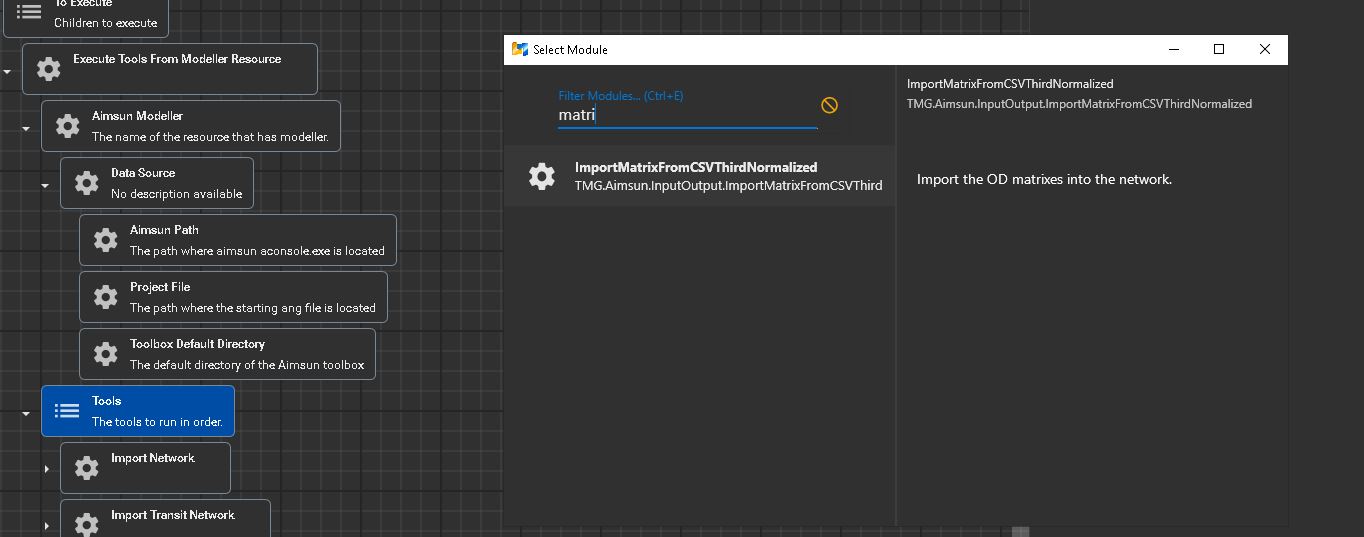
- Step 2: Click on the ImportMatrixFromCSVThirdNormalized module and review and edit any of the paramters on the far right hand side
- Step 3: Right click and on ODCSV and Add Module
- Click on "FilePathFromInputDirectory" to add the module
- Step 4: Copy paste in the path to the ODCSV csv file location as shown in the screenshot below
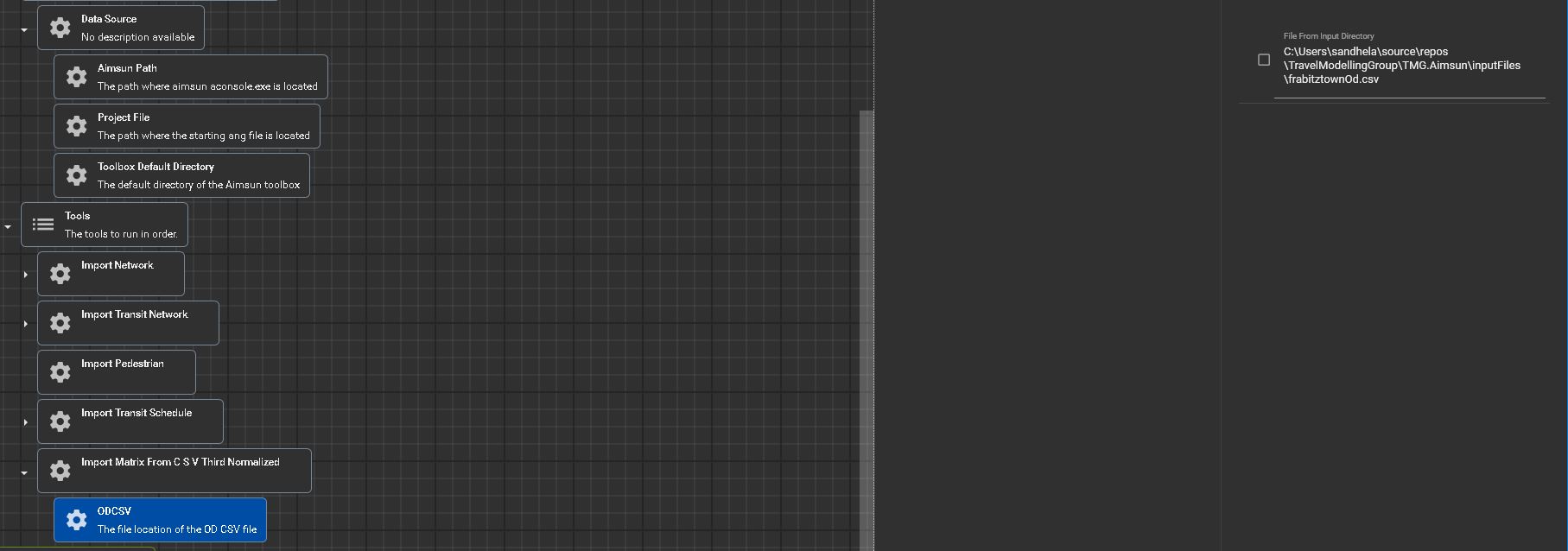
- Step 5: Right click on Tools and add a second ImportMatrixFromCSVThirdNormalized tool
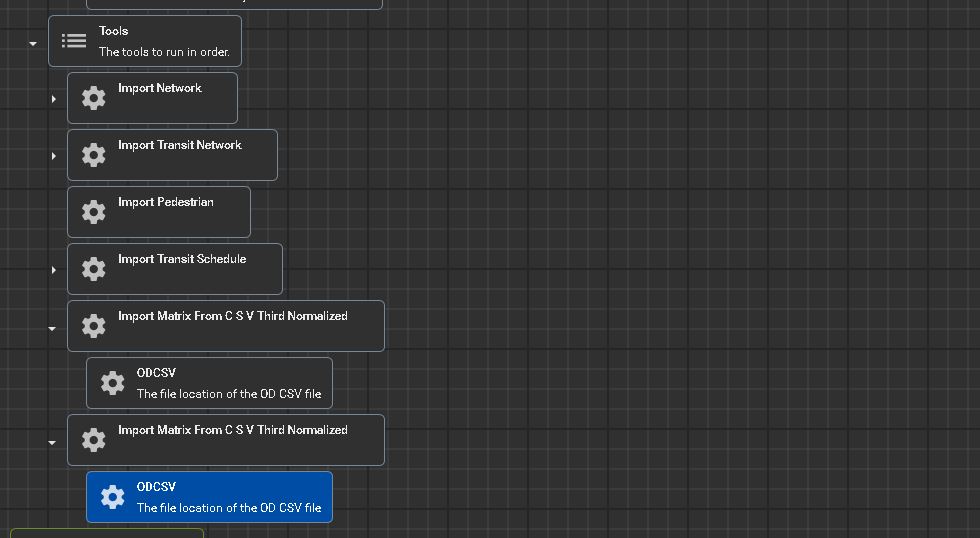
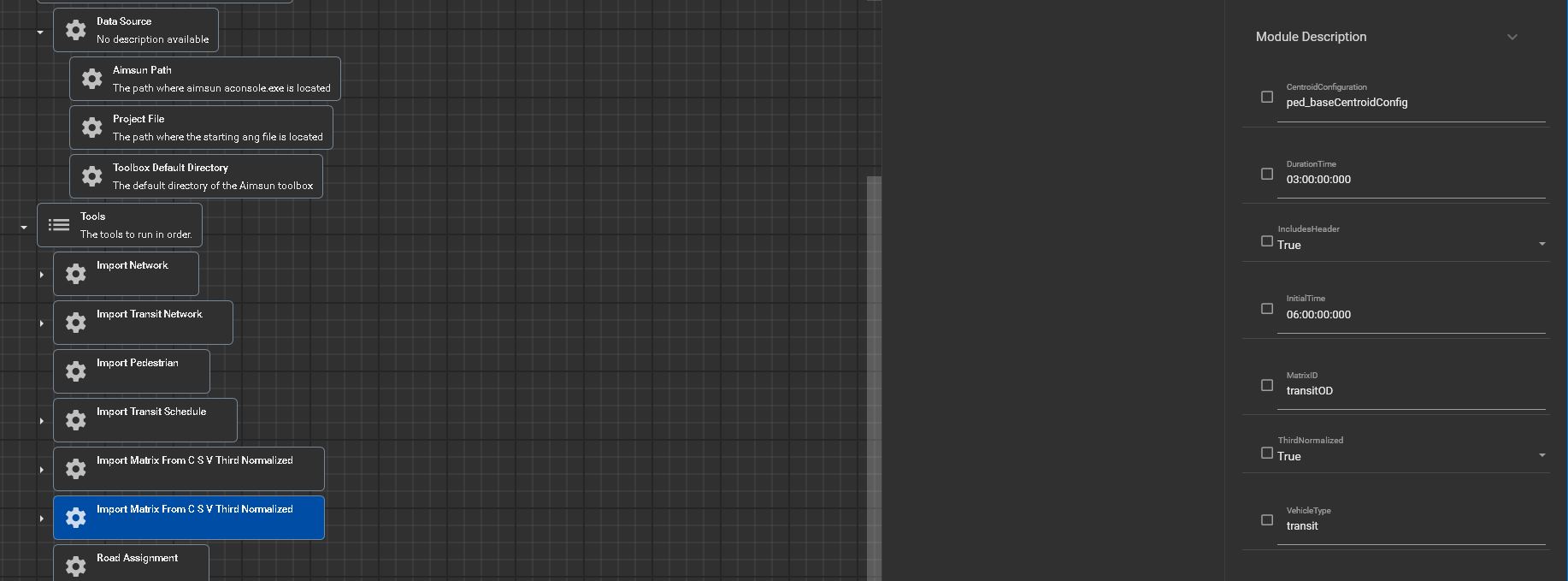
- Step 6: Adjust the parameters for the second ImportMatrix module. Change it to the following:
- CentroidConfiguration: ped_baseCentroidConfig
- MatrixID: transitOD
- VehicleType: transit
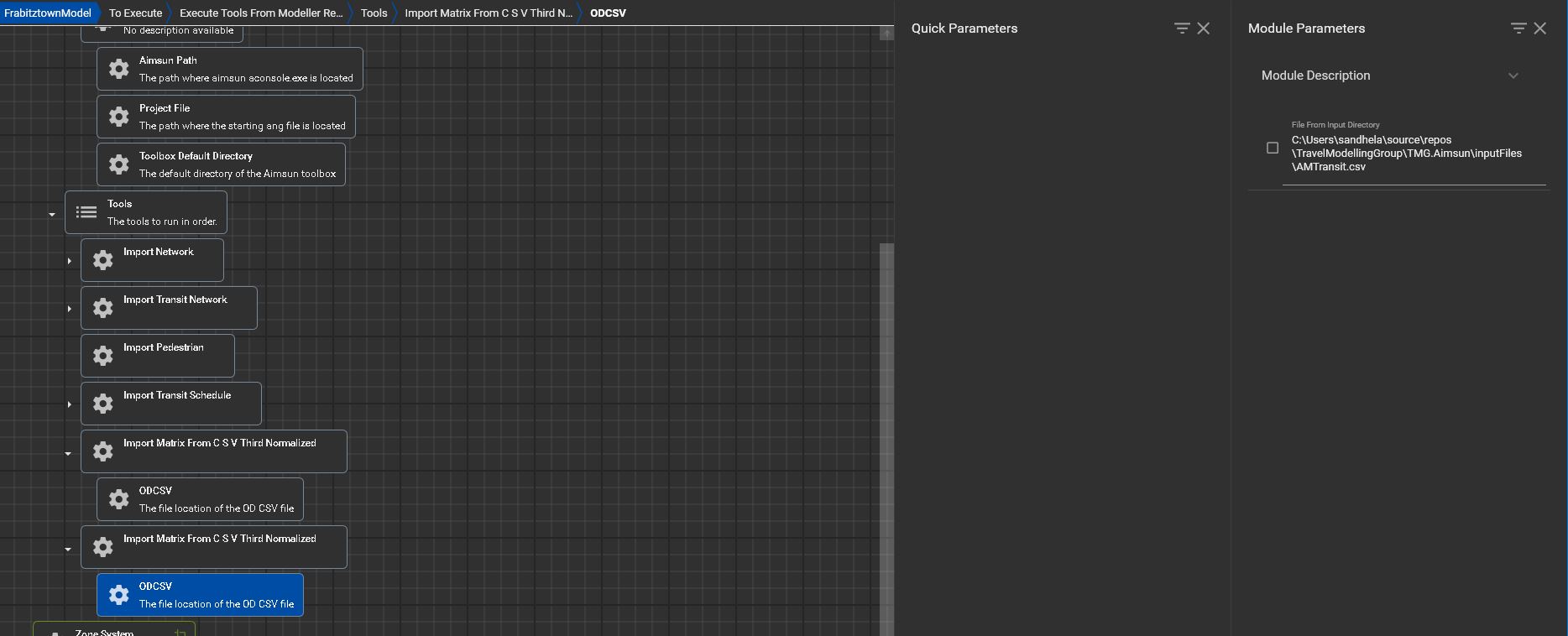
- Step 7: Copy and paste in the path to the ODCSV file and add in the AMTransit.csv file
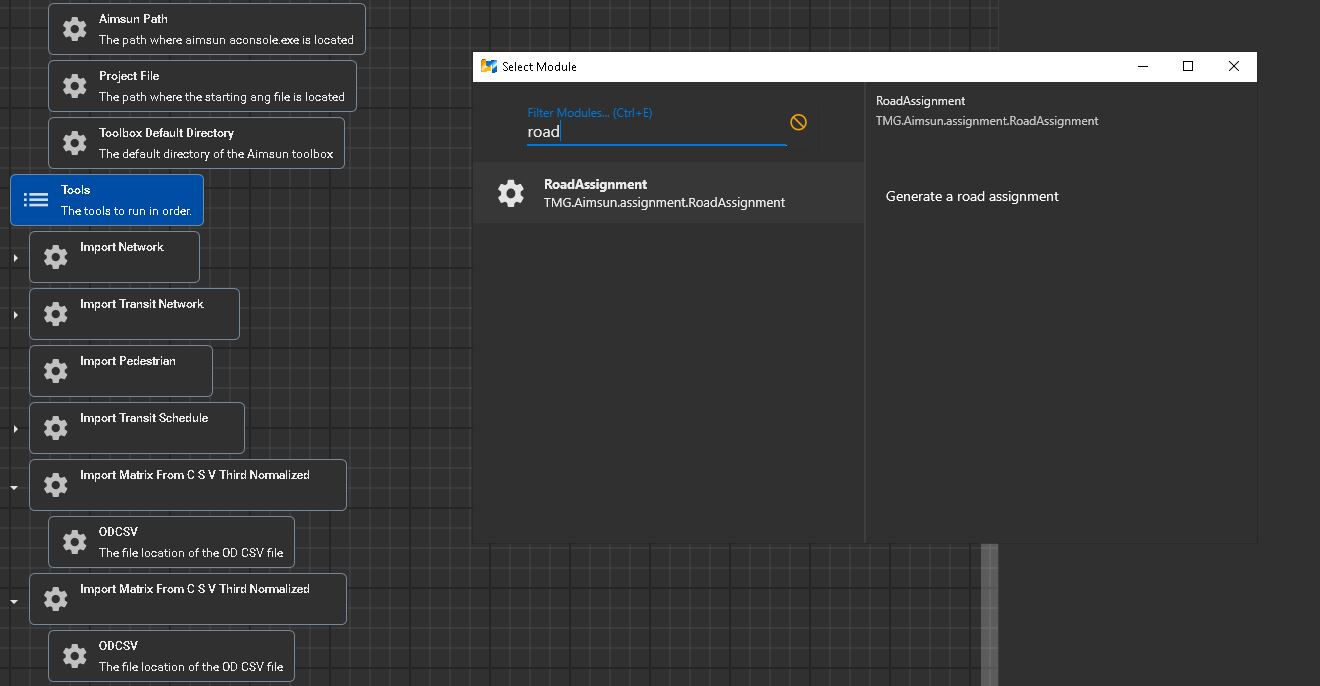
6. RoadAssignment
- Step 1: Right-click on "Tools" and select "Add Module" or Press "Ctrl"+"M"
- Search for the term "RoadAssignment" and add the module to the tool
7. TransitAssignment
- Step 1: Right-click on "Tools" and select "Add Module" or Press "Ctrl"+"M"
- Search for the term "TransitAssignment" and add the module to the tool