Renaming and Importing GTFS Line Data
Before the GTFS data is imported into the network, it needs to be updated to match our coding standard. This makes it a lot easier to work with.
Steps
- Open Routes.txt in excel
- Use Data > Text to Columns
- Add leading T and zeros in excel
- Leading TS for subways, still 6 digits long
To help with the renaming of the routes, we have created a script that can be made into a tool in Emme using python. The script is referenced below.
# Get list of transit line names to be changed

import inro.modeller as m
import csv

_m = m.Modeller()
databank = _m.emmebank
scenario = databank.scenario(14)
network = scenario.get_network()

with open('network_names.csv', mode='w', newline='') as csvfile:
    filewriter = csv.writer(csvfile)
    filewriter.writerow(['Old Name', 'New Name'])

    for line in network.transit_lines():

        if line.id[0] == "T":
            filewriter.writerow([line.id])


# Rename Transit Lines using CSV of fixed names

import inro.modeller as m
import pandas as pd

_m = m.Modeller()
databank = _m.emmebank
scenario = databank.scenario(14)
network = scenario.get_network()

#Note:Replace the file location below with the directory where the Fixed Names CSV file is located and uncomment below.

#file_path = r"Documents\Fixed Names.csv"

def replace_name(network, old, new, delay):

    line = network.transit_line(old)
    check = network.transit_line(new)

    if line is not None:
        if check is not None:
            delay.append((old, new))
            return

        line.id = new
    return


with open(file_path, "r") as f:

    header = True
    delay = []

    for line in f.readlines():
        if header == True:
            header = False
            continue
        parts = line.split(",")
        if len(parts) >= 2:
            original = parts[0].strip()
            new = parts[1].strip()
            replace_name(network, original, new, delay)

    while len(delay) > 0:

        new_delay = []

        for line in delay:
            replace_name(network, line[0], line[1], new_delay)

        if len(delay) == len(new_delay):
            print("bad lines:" )
            for line in new_delay:
                print(line)
            raise Exception("raise exception")

        delay = new_delay


scenario.publish_network(network)
After the naming is done, the GTFS data can now be imported in the network.
Steps
- Data management > Network > Transit > Import from GTFS
- Browse directory for folder containing lines
- Necessary documents are:
- Agency.txt
- Calendar.txt
- Calendar_dates.txt
- Routes.txt
- Shapes.txt
- Stop_times.txt
- Stops.txt
- Trips.txt

Next proceed to set time and day service details.
- Select day that ensures lines are representative of usual service
- Do not select a holiday or weekend
- Select whole day time period to ensure all time periods are represented
- 00:00 Start time
- 23:59 End time

That done, proceed to do the following
- Select all route types for upload
- Trams, Metros, and Buses
- Select correct agency
- Select all routes to be uploaded
- Click the arrow next to
Selectto highlight all boxes

Now Select user created Route name, Trip ID, and Stop name network fields, all other network fields are optional and not used in GTAModel
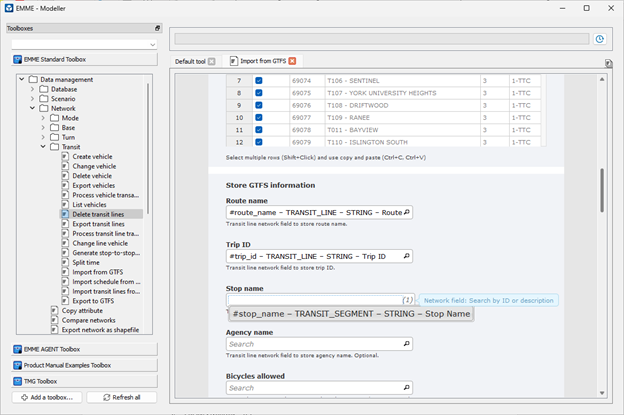
Next Steps
Now we are ready to select the different vehicle types in our network.