Exercise 1
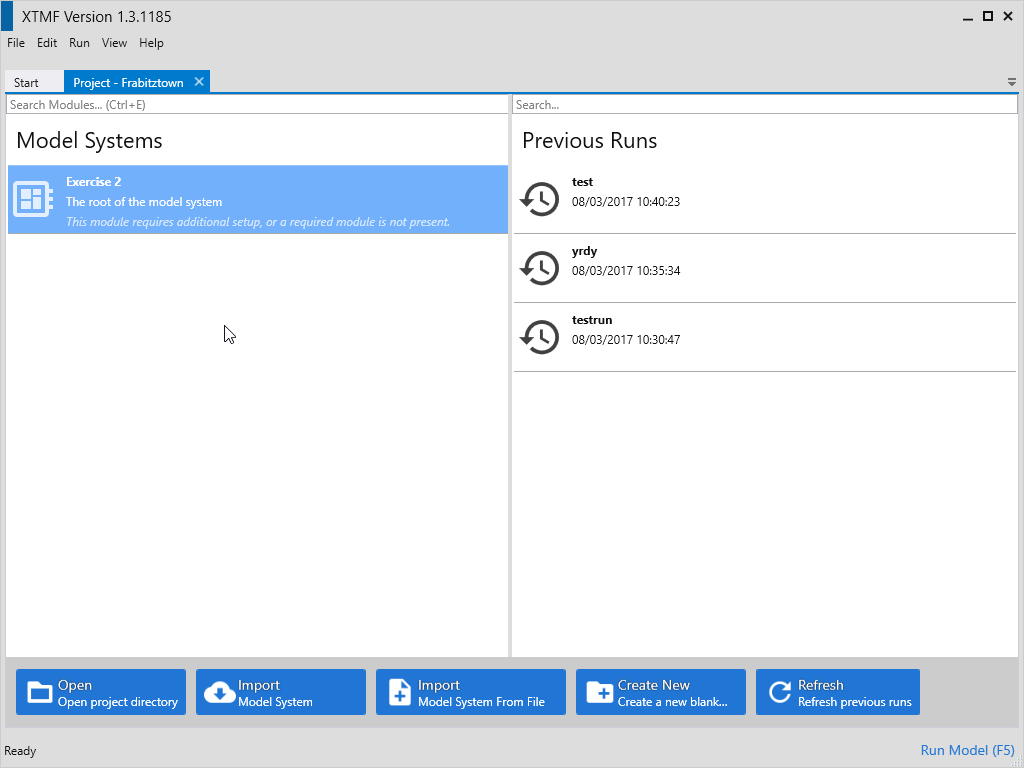
1.3 - Create a Root Module
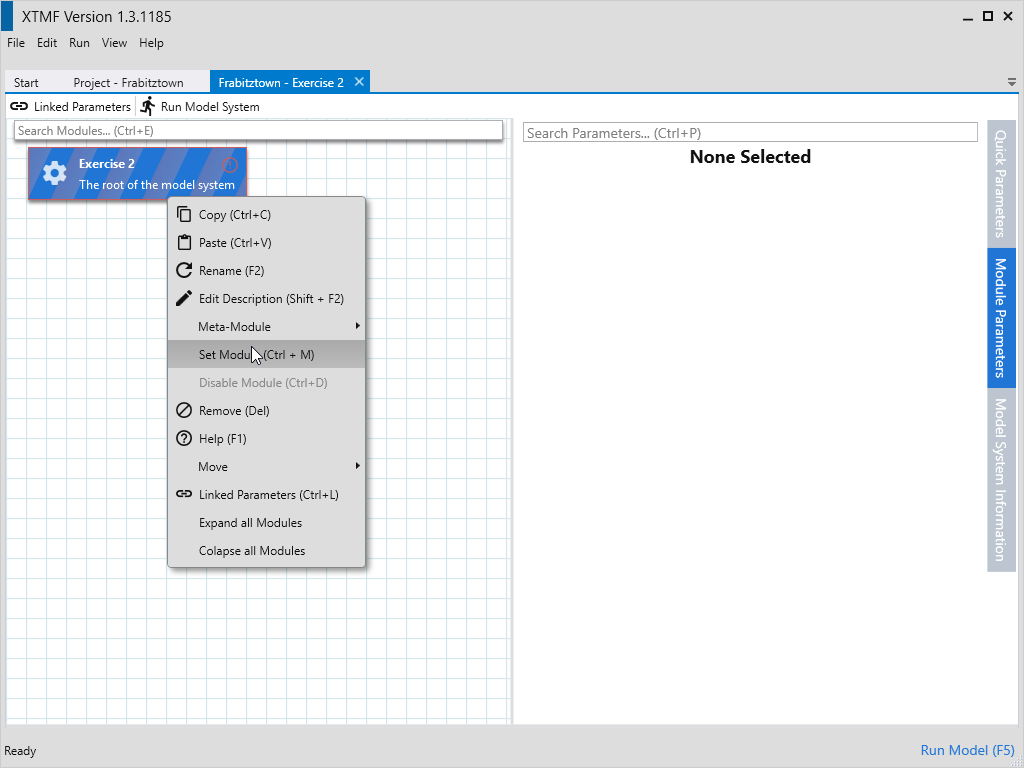
- Click on the root module and either press Ctrl+M or right click and select Set Module.
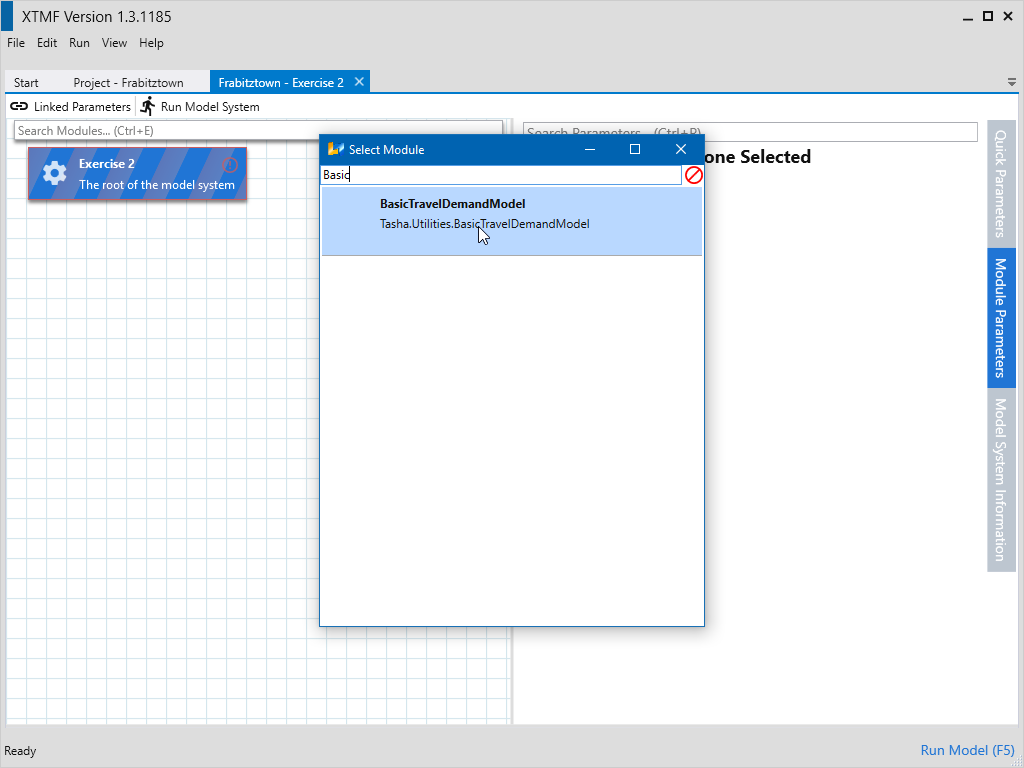
- Search for the module type “BasicTravelDemandModule”
- Double click on the Module type “BasicTravelDemandModel” or press “Enter”
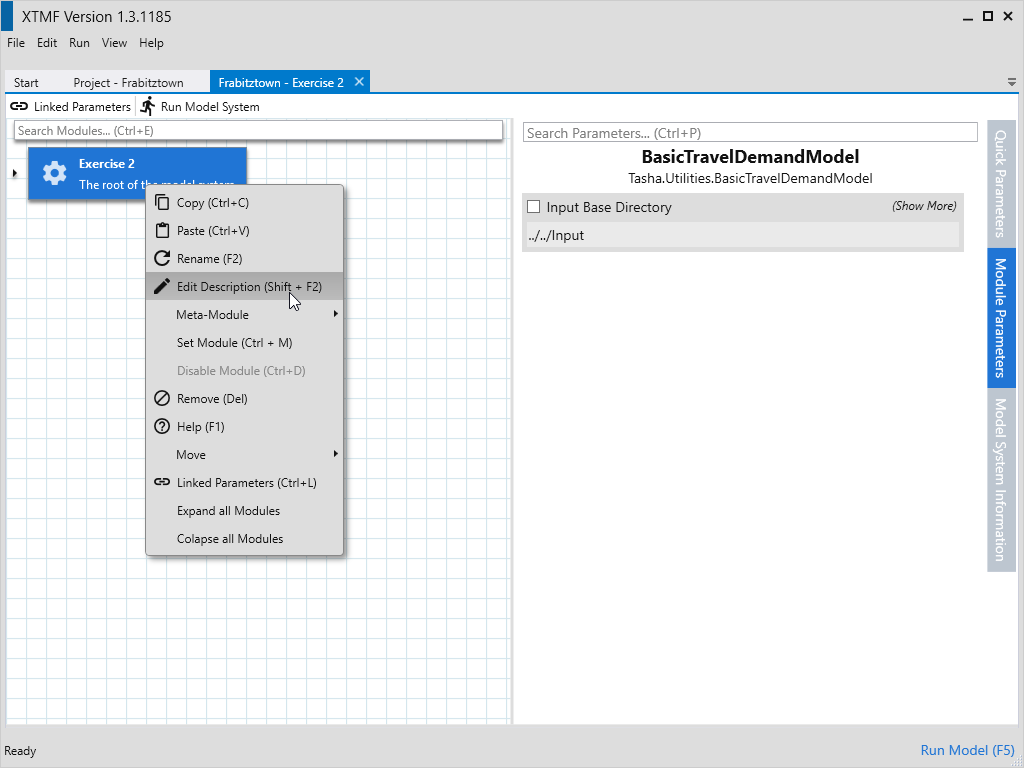
- Press Shift+F2 or right click and select “Edit Description” and write down the description “Trip Generation”
- Download Input from [insert link here] and extract them
1.4 - Setting the Base Directory
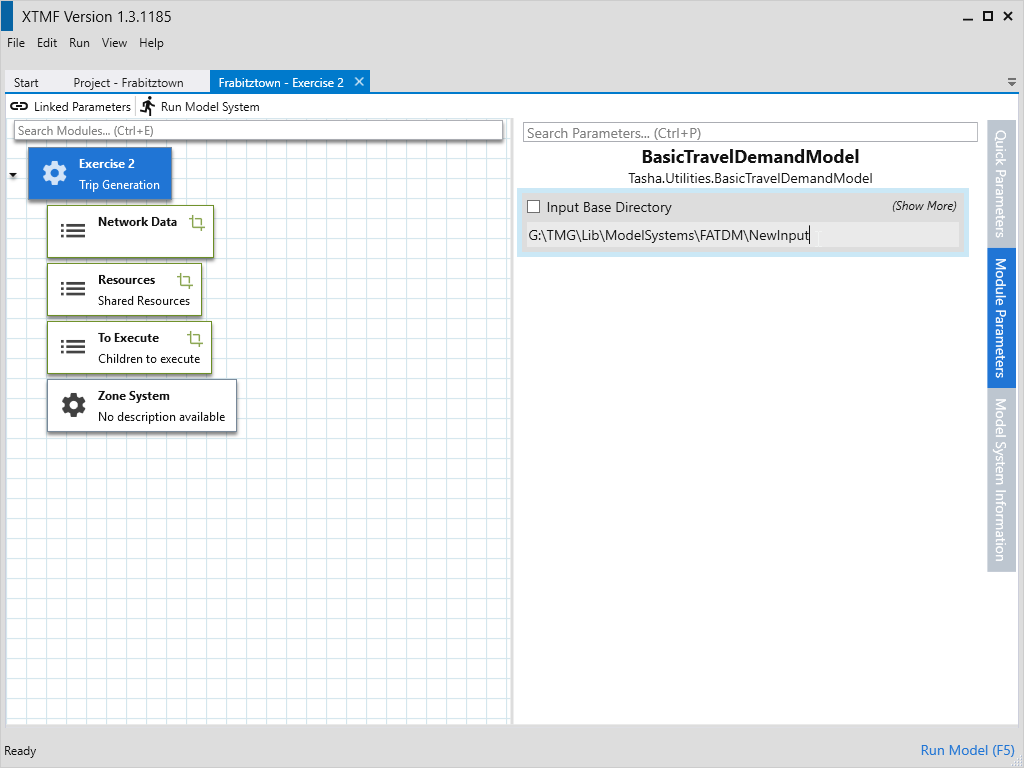
- Set model system input base directory
- Select the module named “Exercise 2”
- Select parameter “Input Base Directory”
- Set the value to the location of the input directory
1.5 - Setting the Population Resource
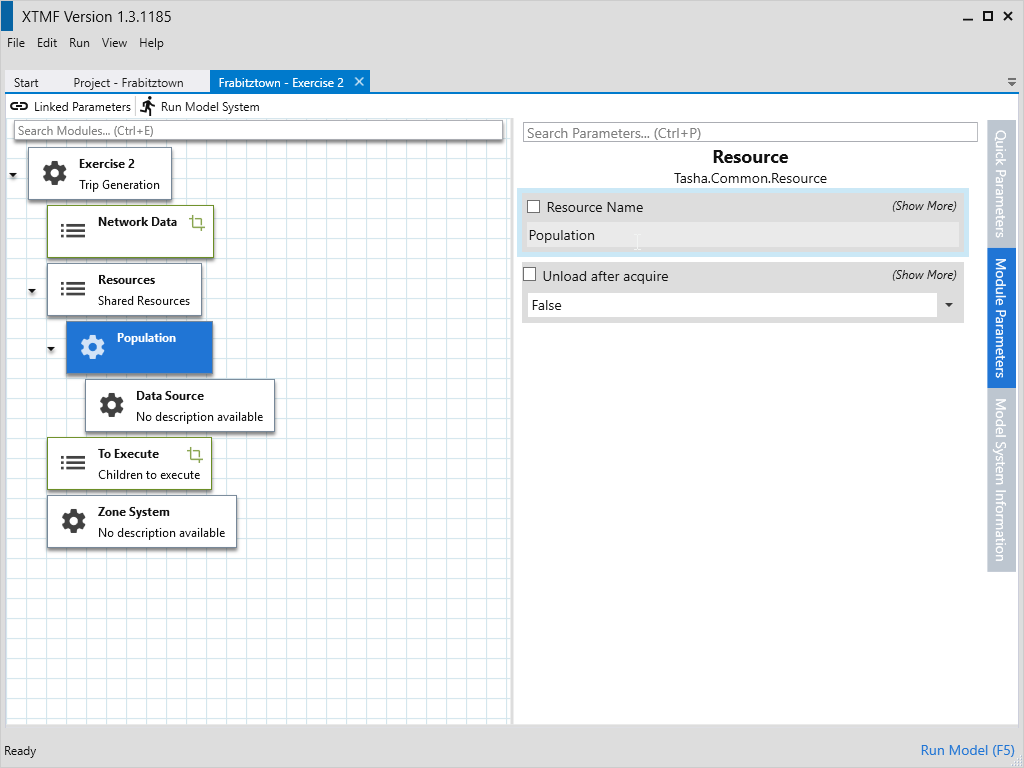
- Create the Population Resource
- Select the resources module
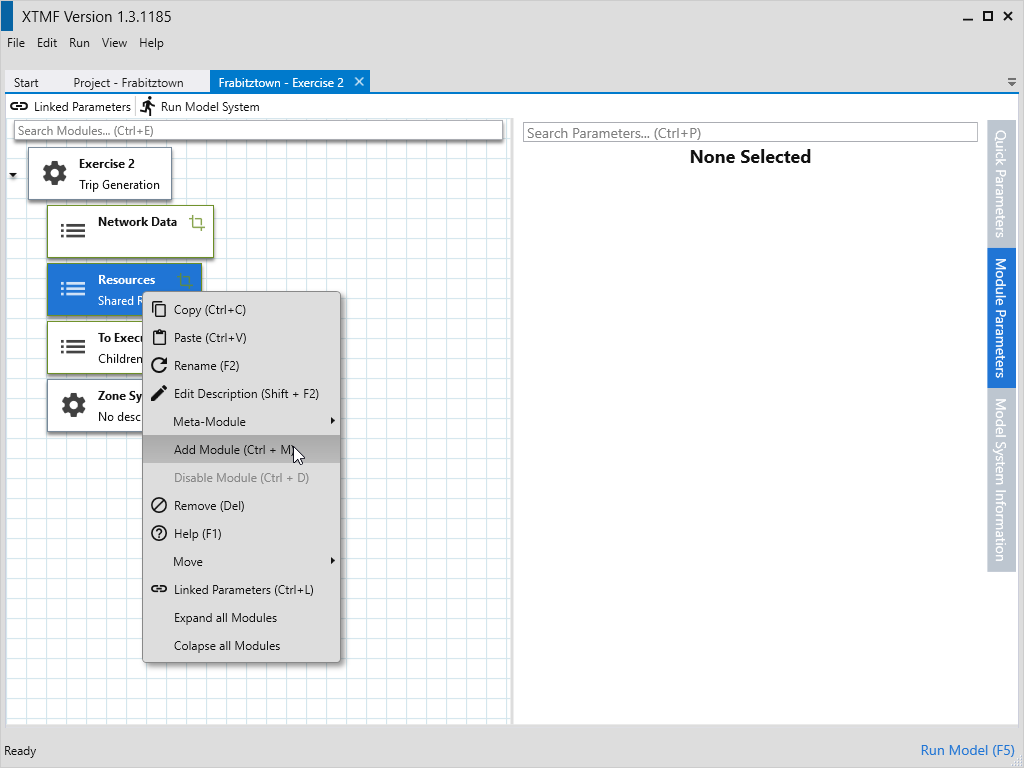
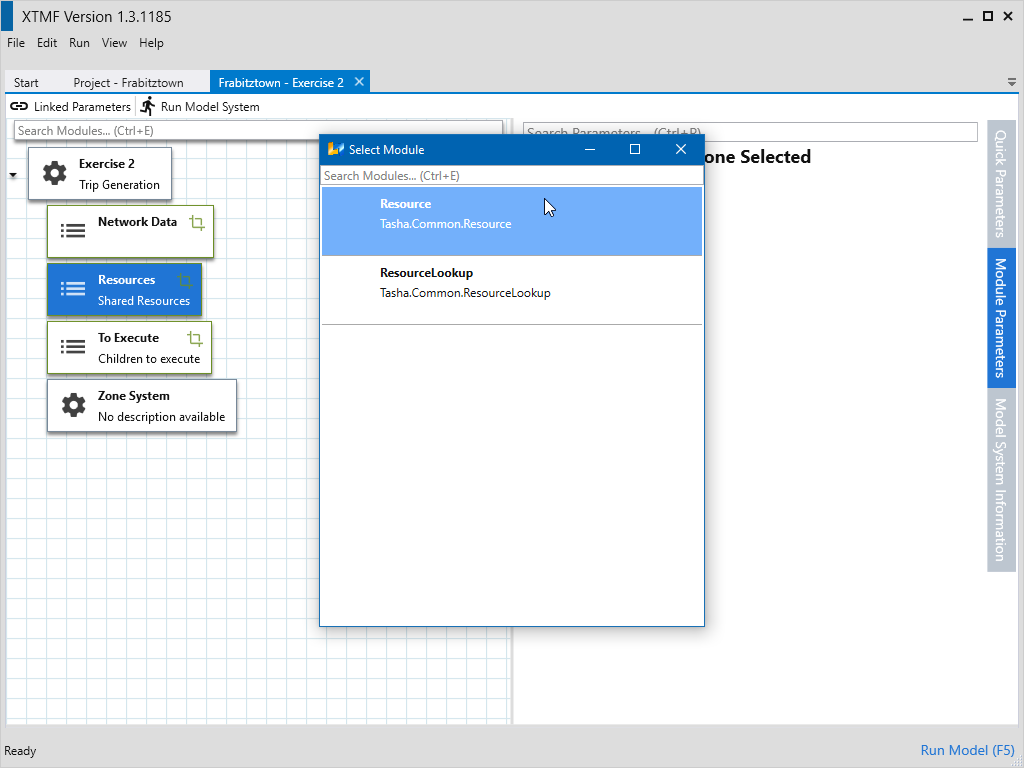
- Create Module of Type Resource
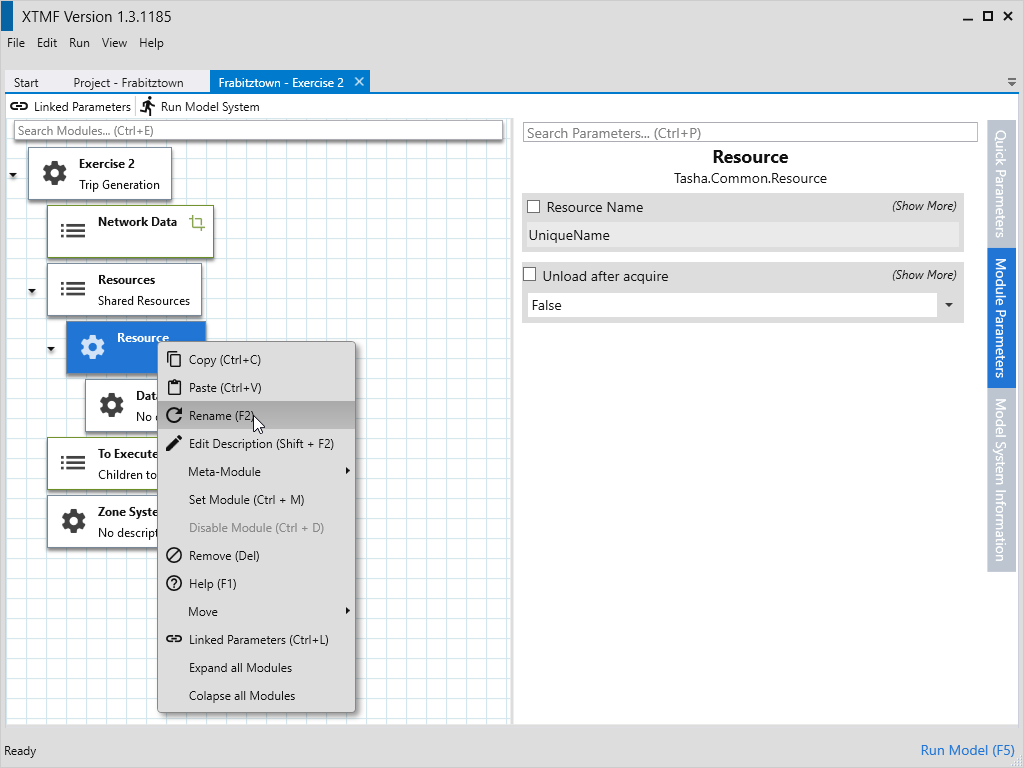
- Rename module to “Population”
- Change Parameter “Resource Name” to “Population”
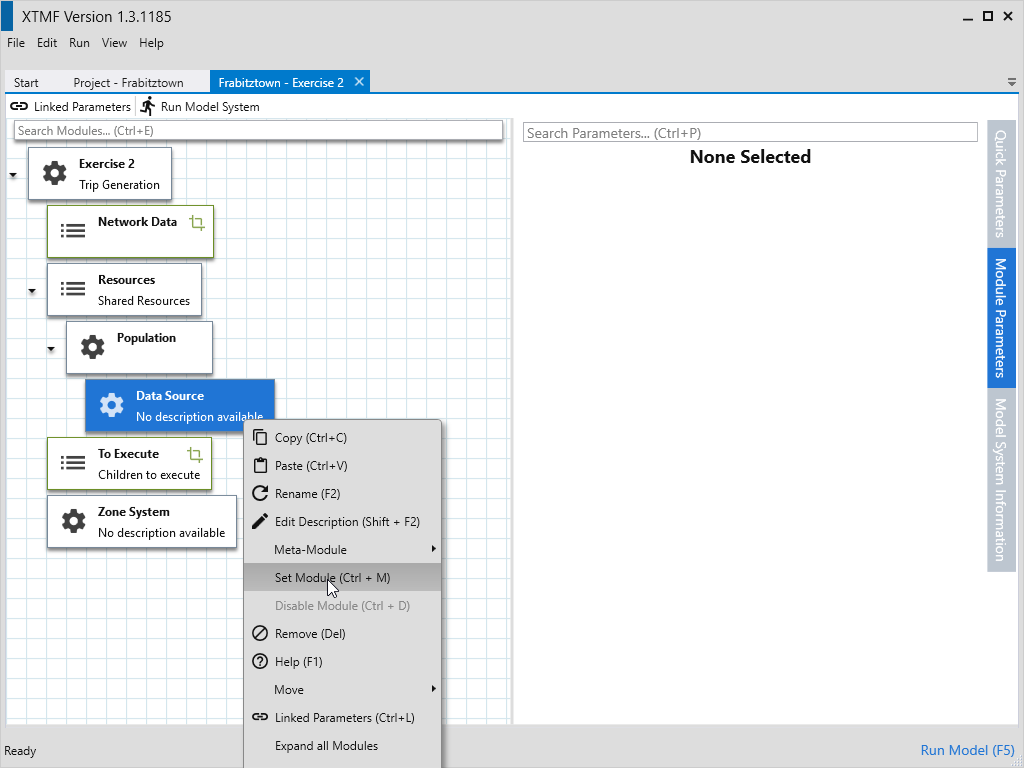
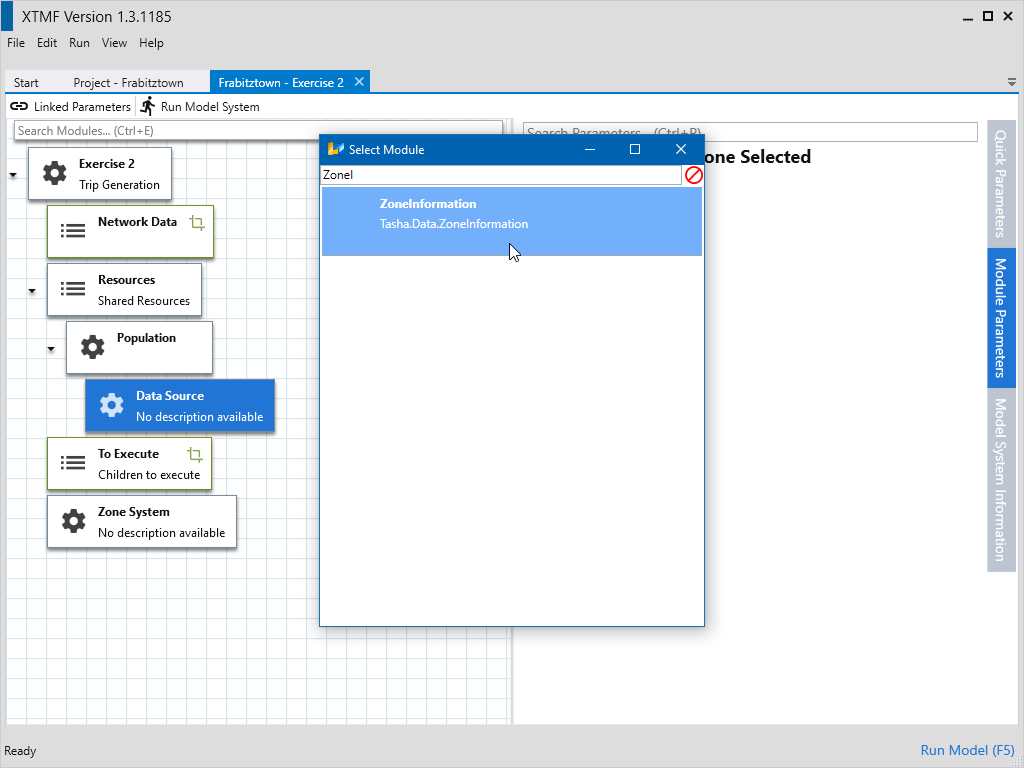
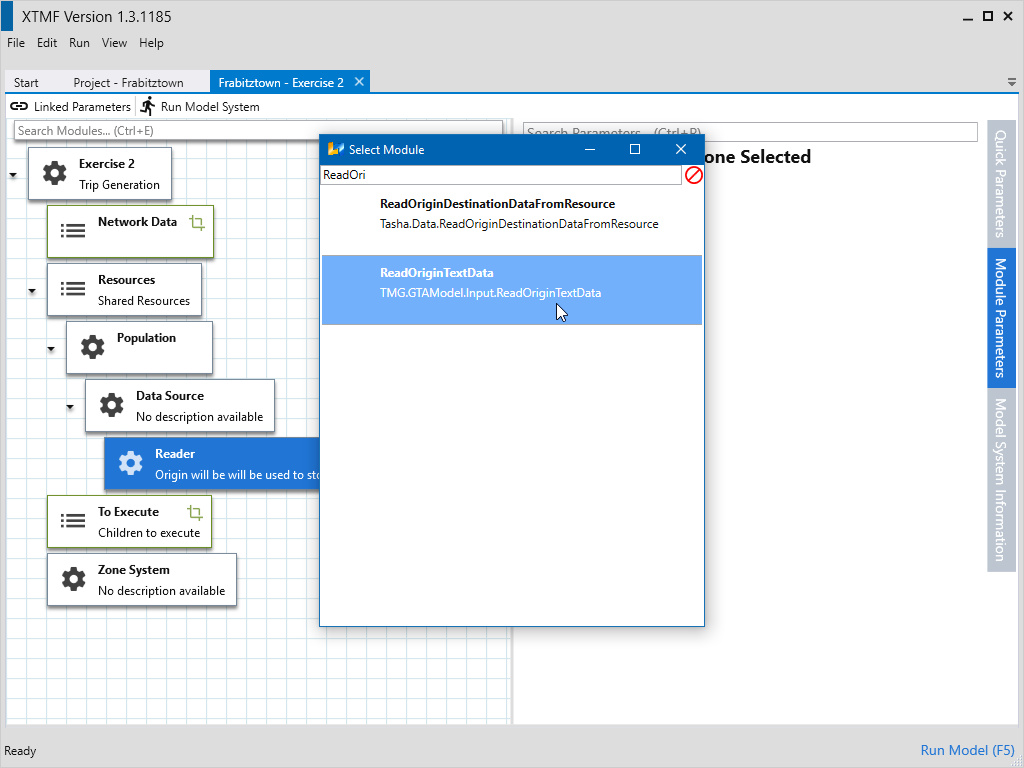
- Change Data Source to ZoneInformation
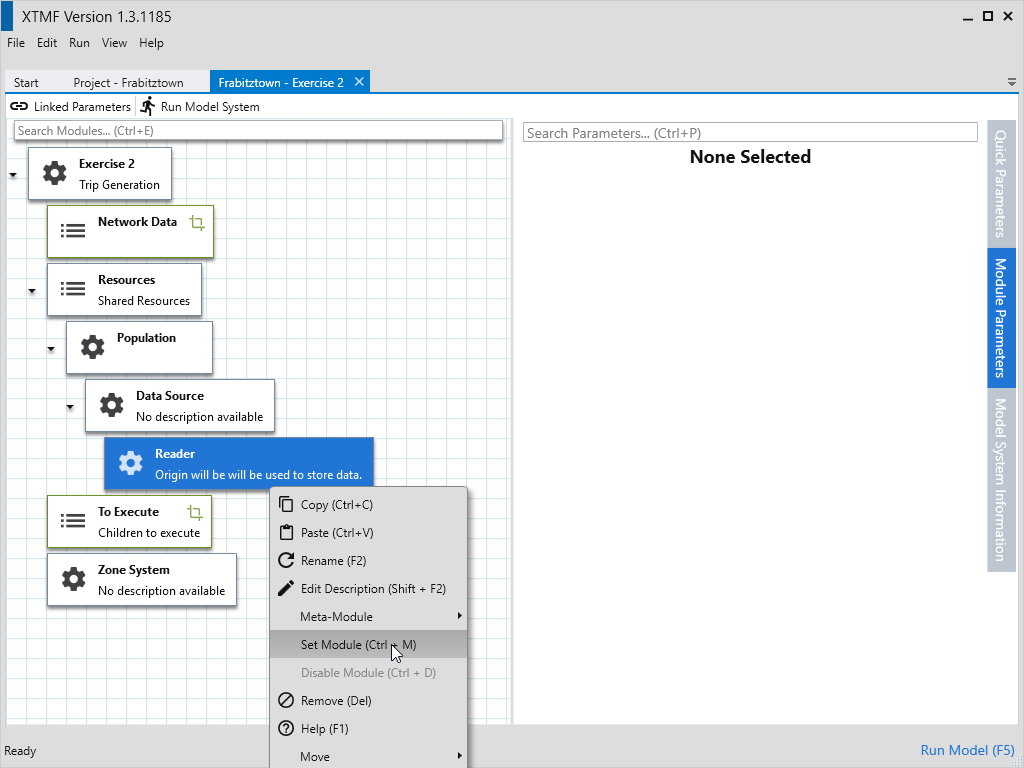
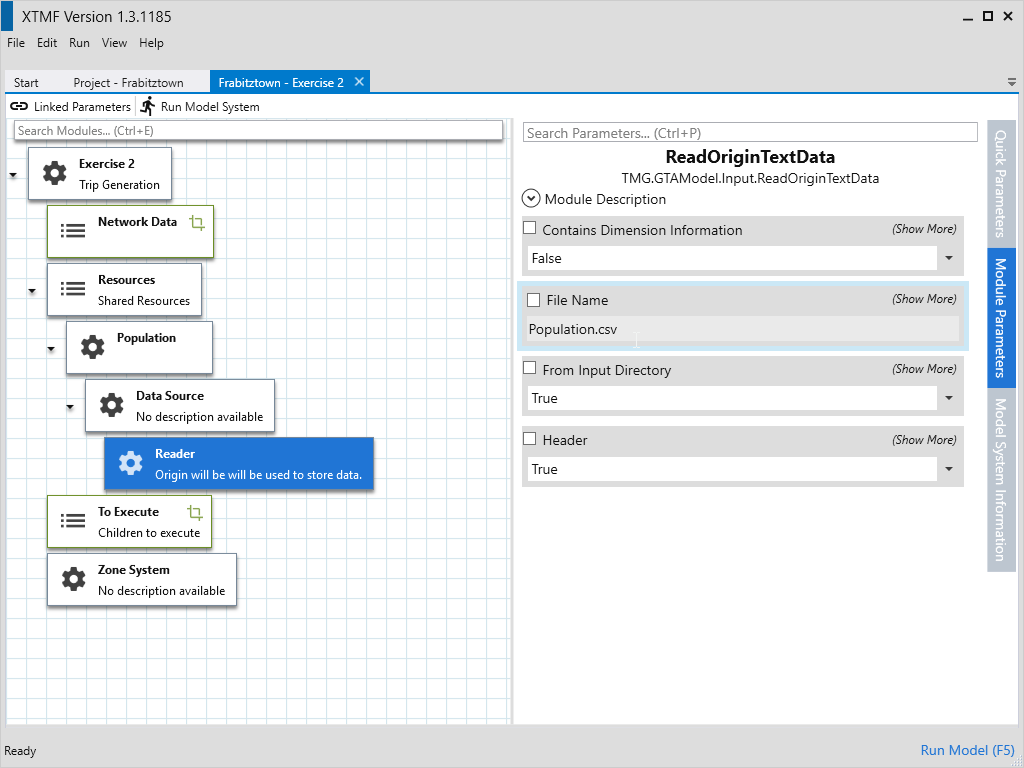
- Change Reader to ReadOriginTextData
- Update Parameter “File Name” to “Population.csv”
1.5 - Copy the Population Resource
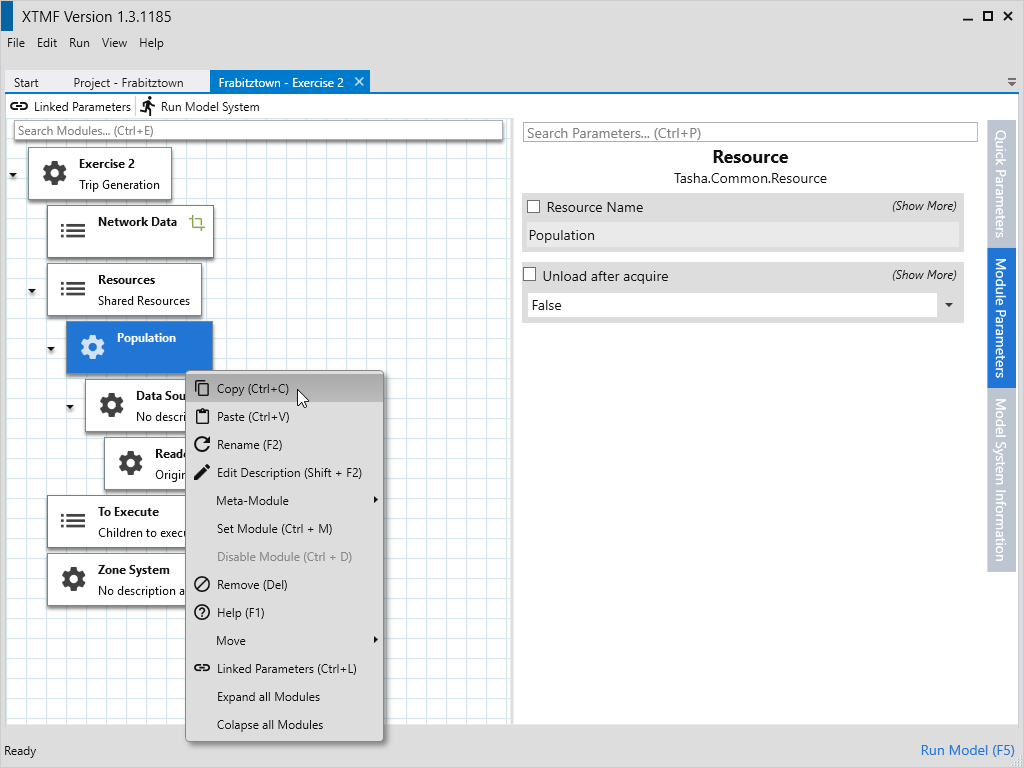
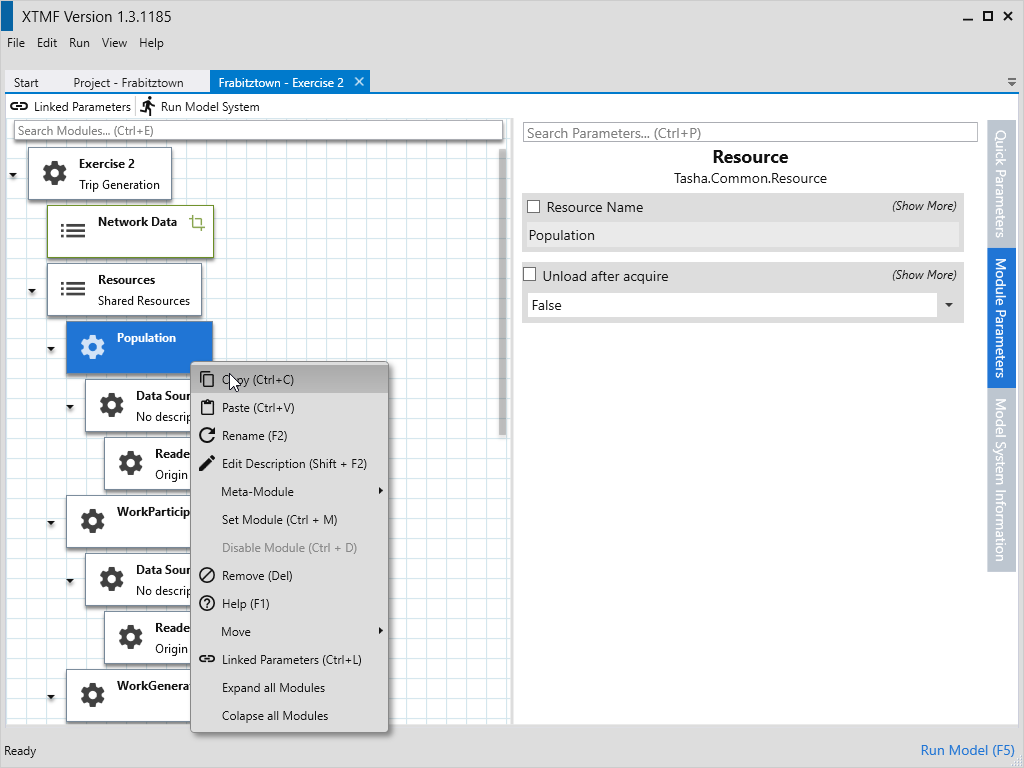
- Click on the Population module and press Ctrl+C or right click and select “Copy”
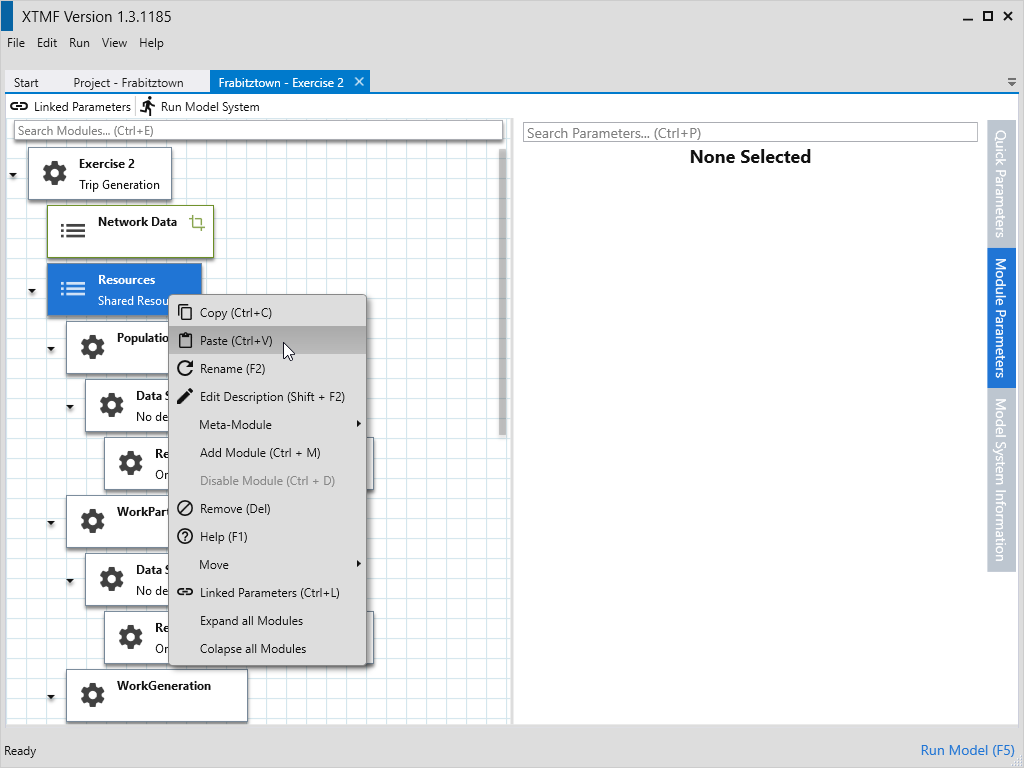
- Click on “Resources” and paste by pressing Ctrl+V or right click and selecting “Paste”
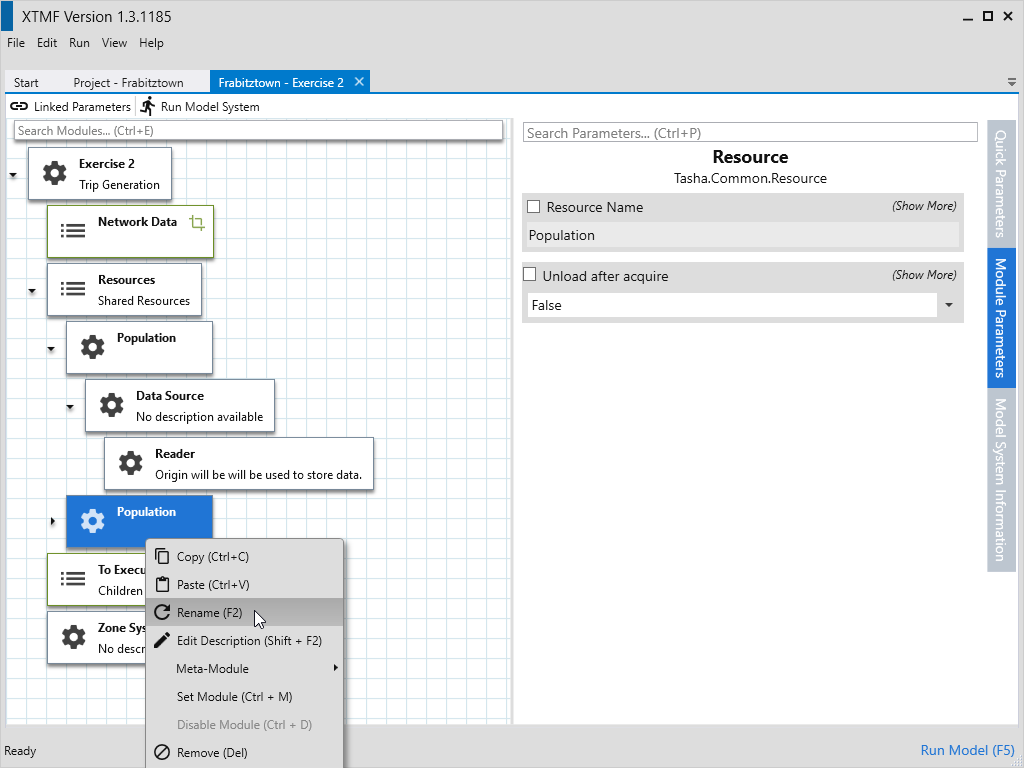
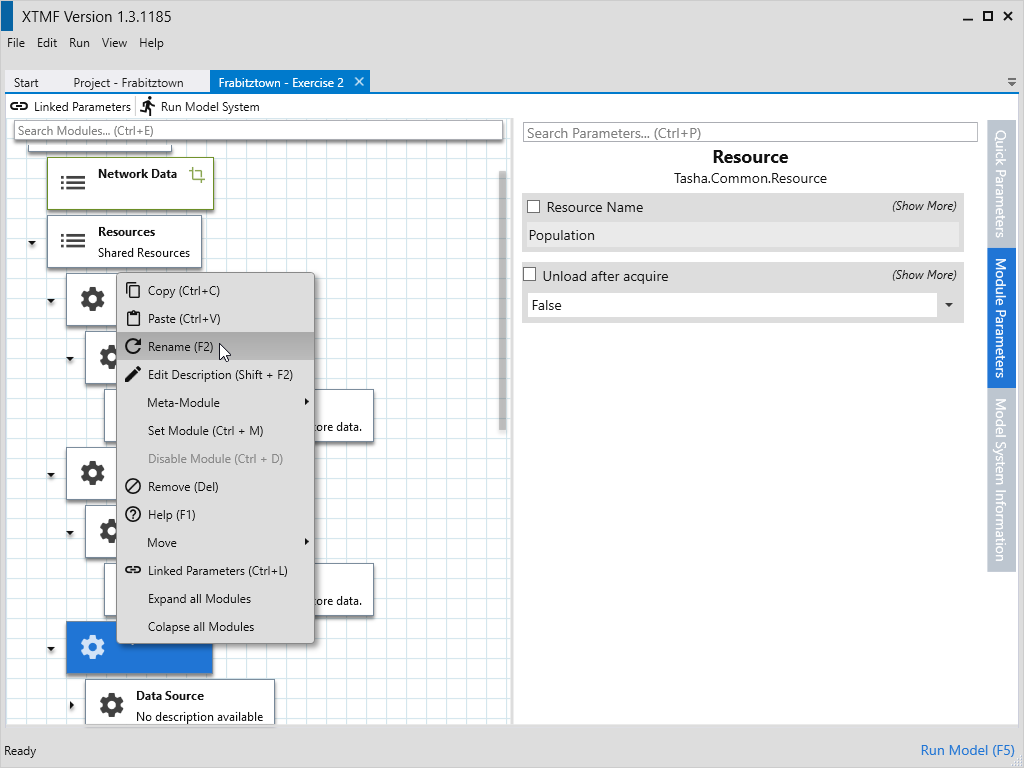
- Click on the bottom Population and press F2 or right click and select “Rename”
- Type in “WorkParticipation” and then press Enter.
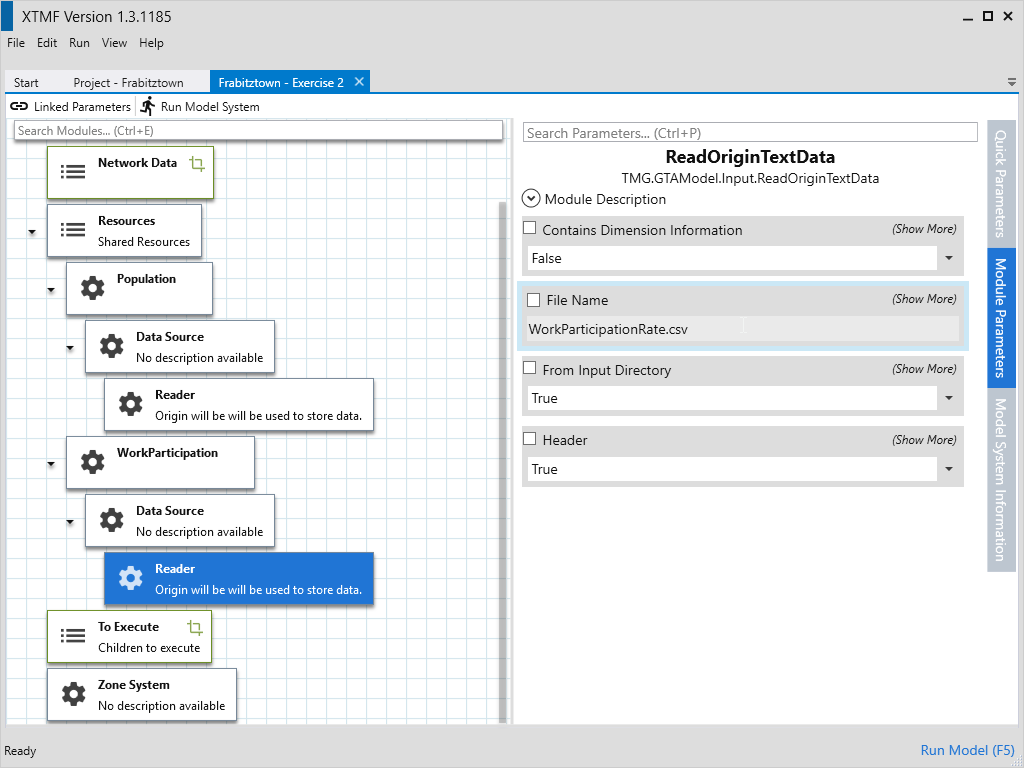
- Expand the module, and expand again the Data Source submodule
- Select Reader
- Change the parameter “File Name” to “WorkParticipationRate.csv”
- Click on the Population module and press Ctrl+C or right click and select “Copy”
- Click on “Resources” and paste by pressing Ctrl+V or right click and selecting “Paste”
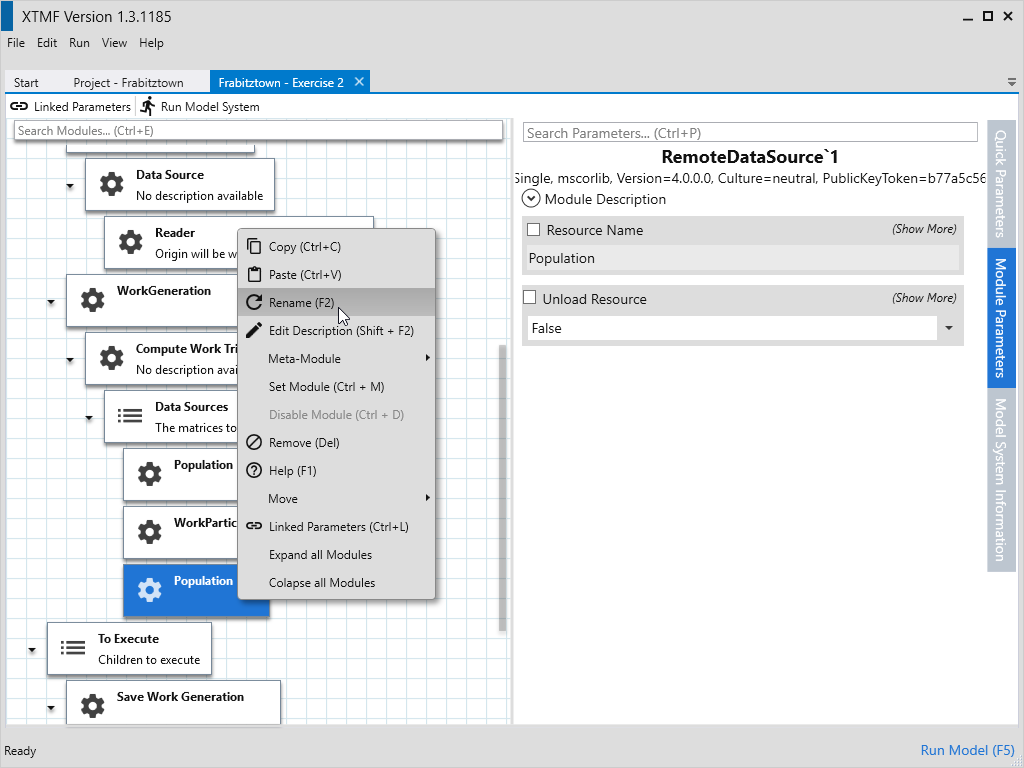
- Click on last Population and press F2 or right click and select “Rename”
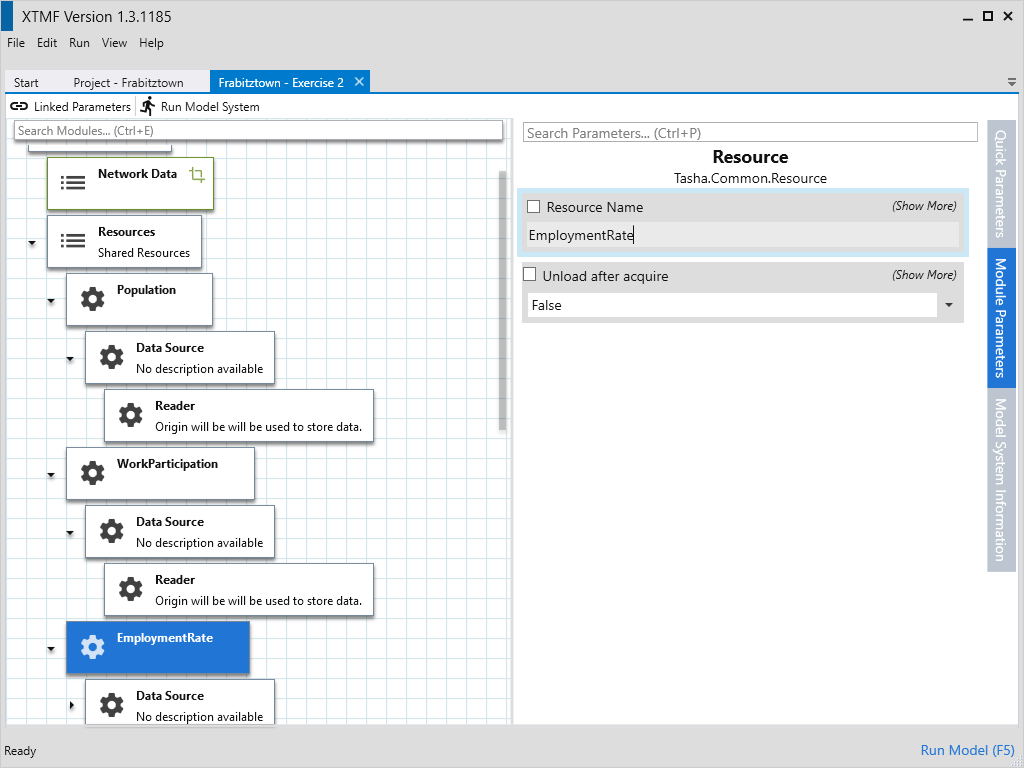
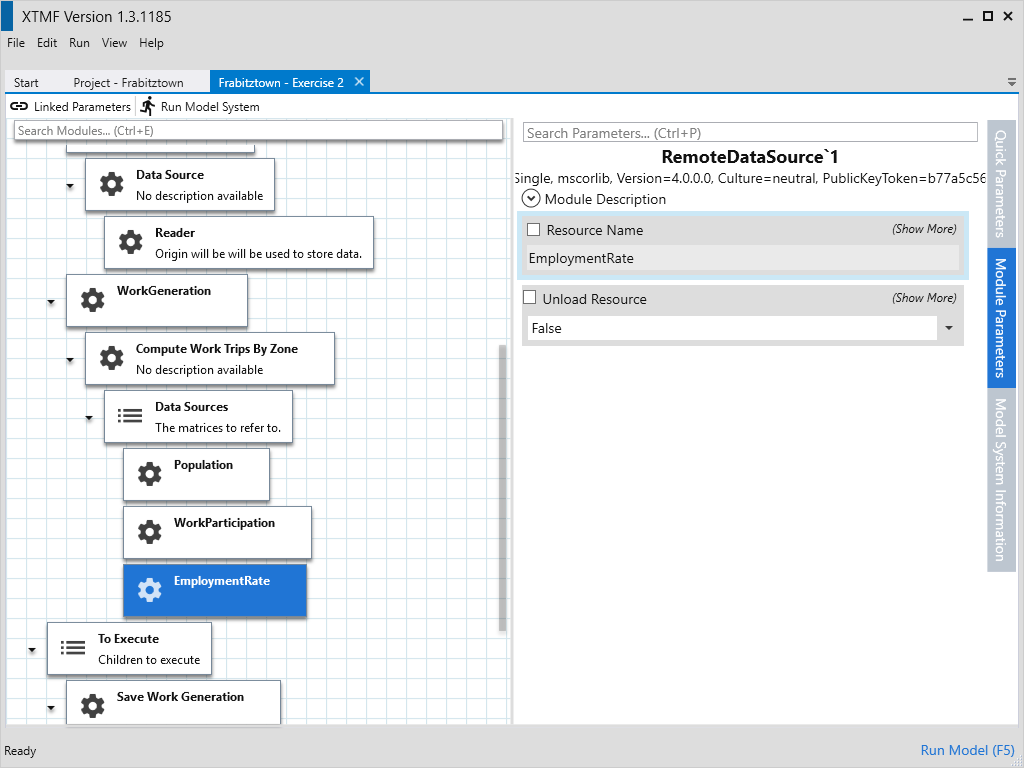
- Type in “EmploymentRate” and then press Enter.
- Expand the module, and expand again the Data Source submodule
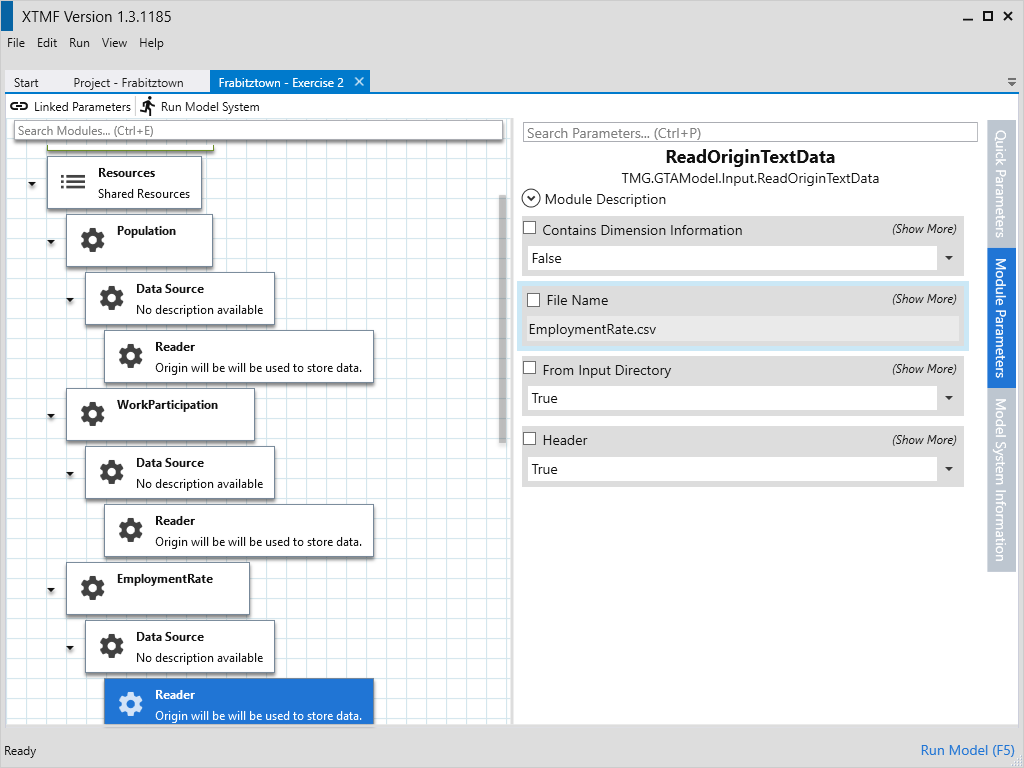
- Select Reader
- Change the parameter “File Name” to “EmploymentRate.csv”
1.7 - Create Work Generation
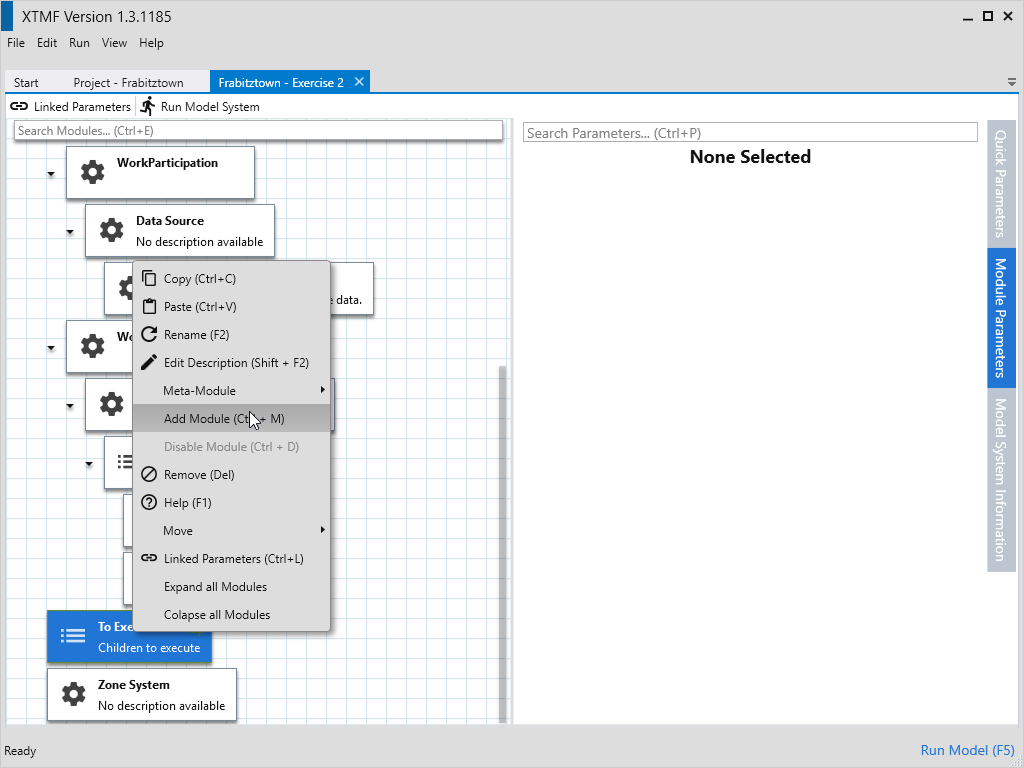
- Select Resources and add a new module by pressing Ctrl+M or by right clicking and selecting “Add Module”.
- Select the type “Resource”
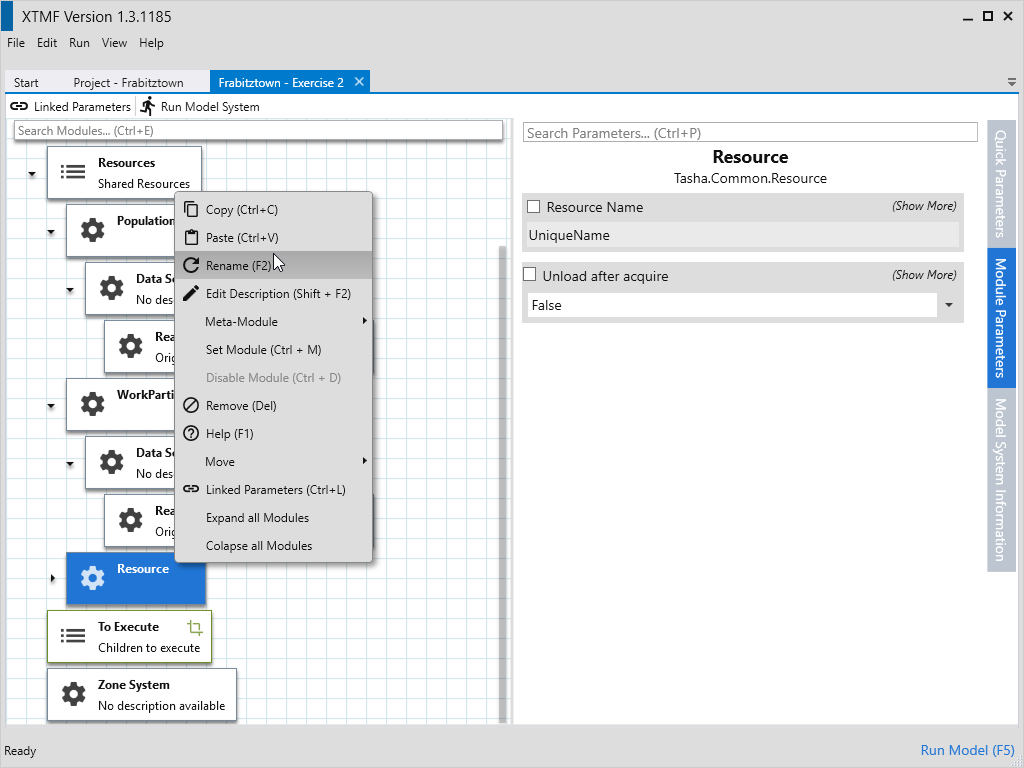
- Rename the module “Work Generation”
- Change the parameter “Resource Name” to “WorkGeneration”
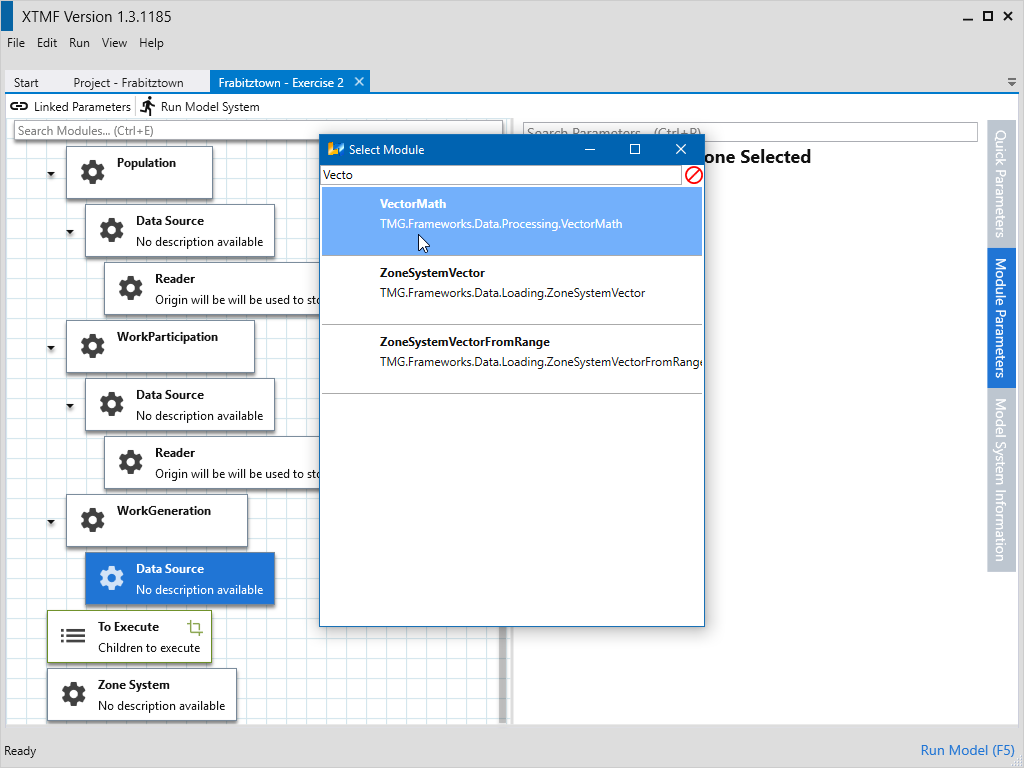
- Select sub-module Data Source.
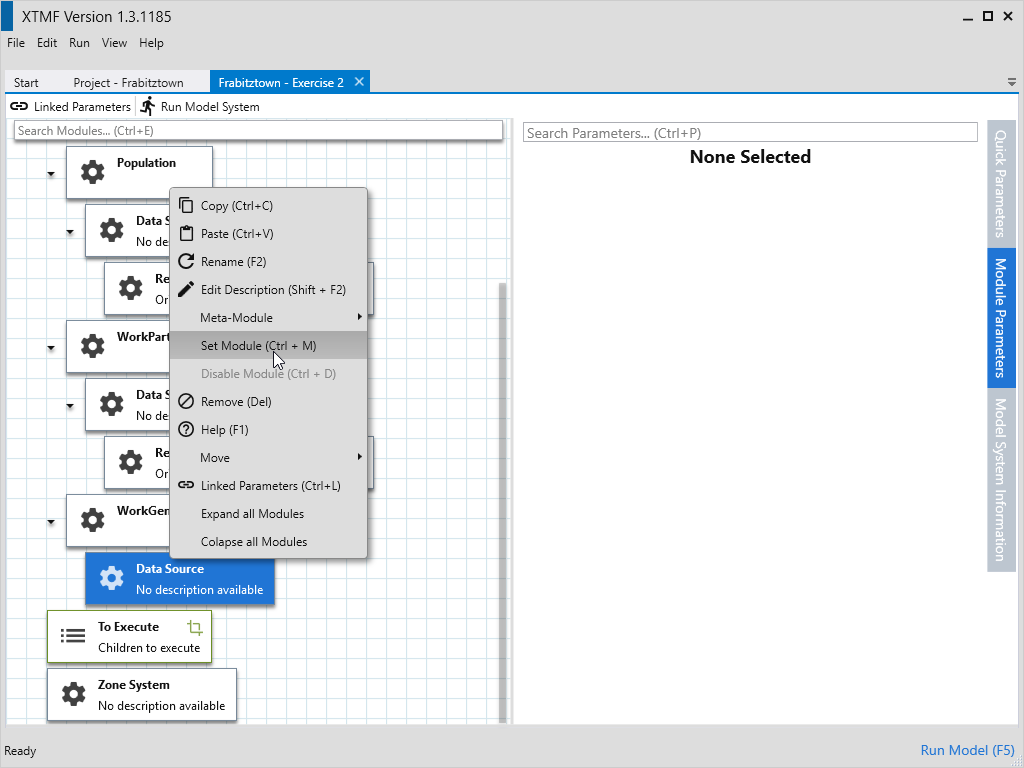
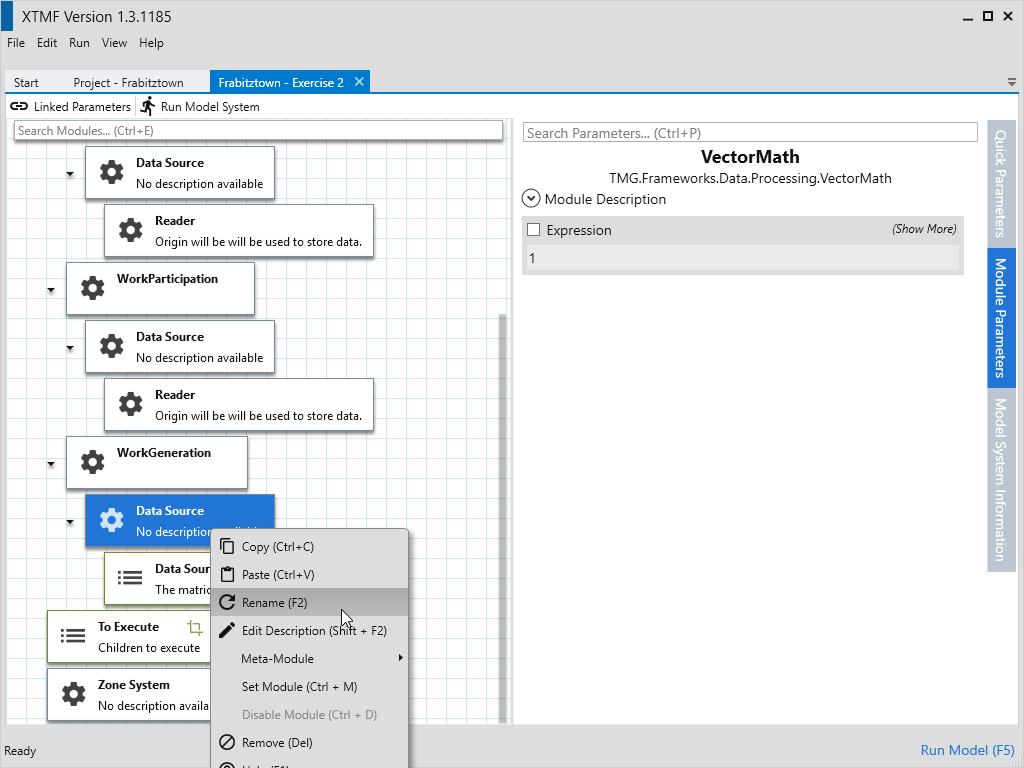
- Set the module type to VectorMath by pressing Ctrl+M or right clicking and selecting “Set Module”
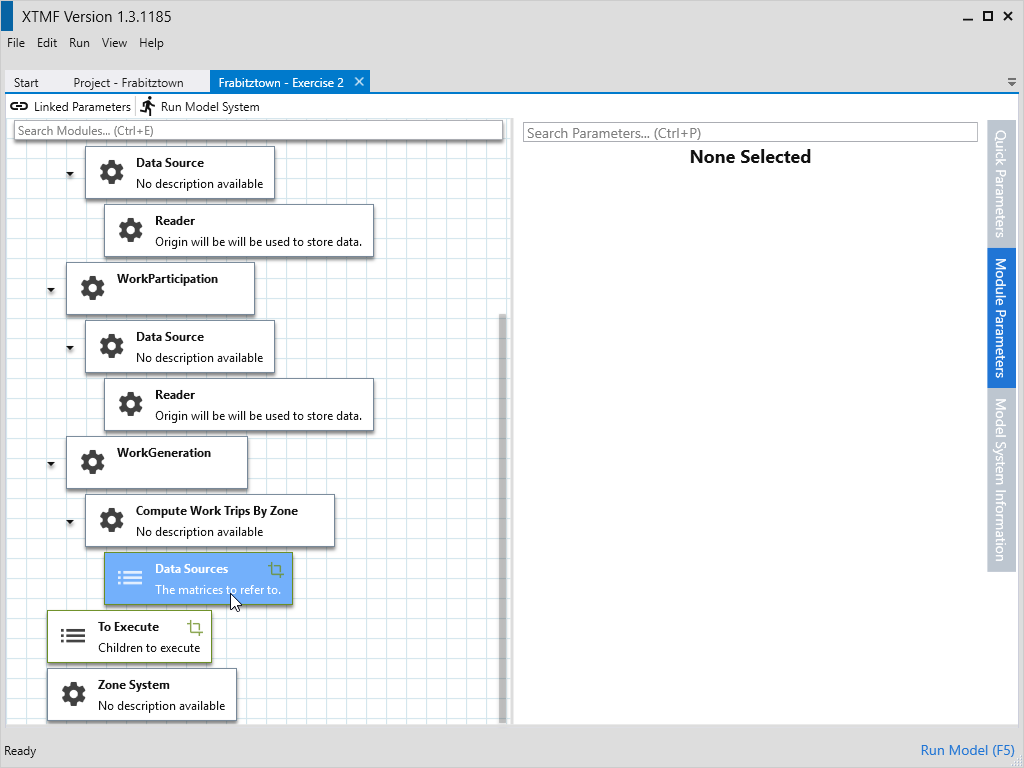
- Change the name of the module to “Compute Work Trips By Zone”
- Select Data Sources
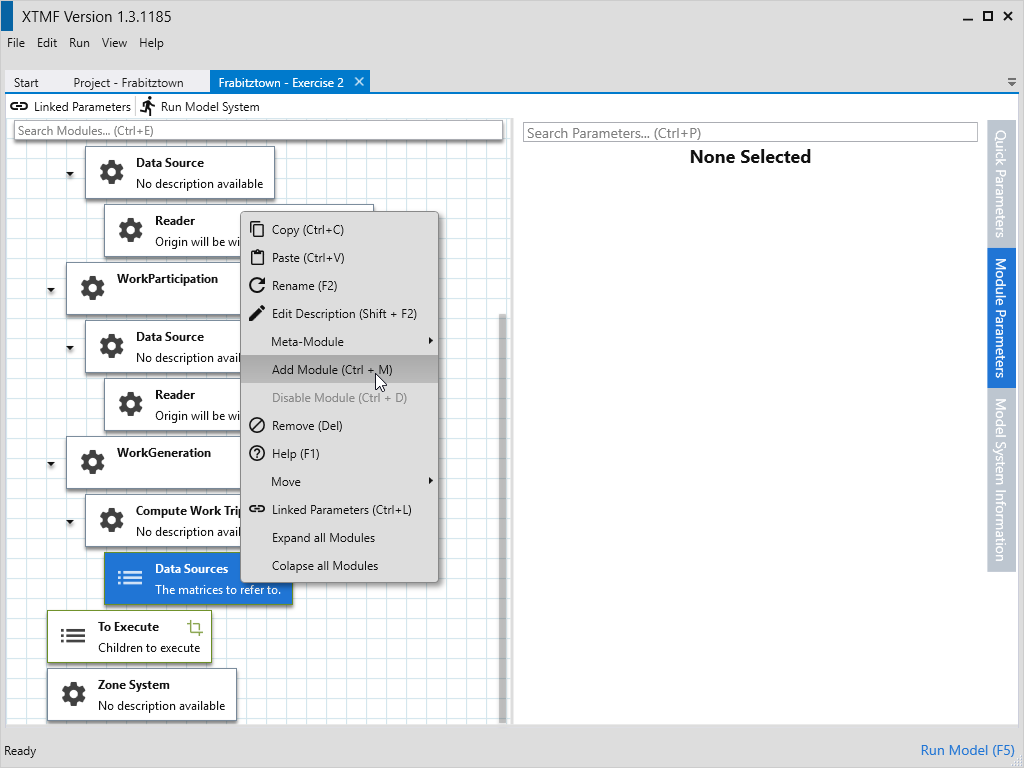
- Add a new module by pressing Ctrl+M or right clicking and selecting “Add Module”
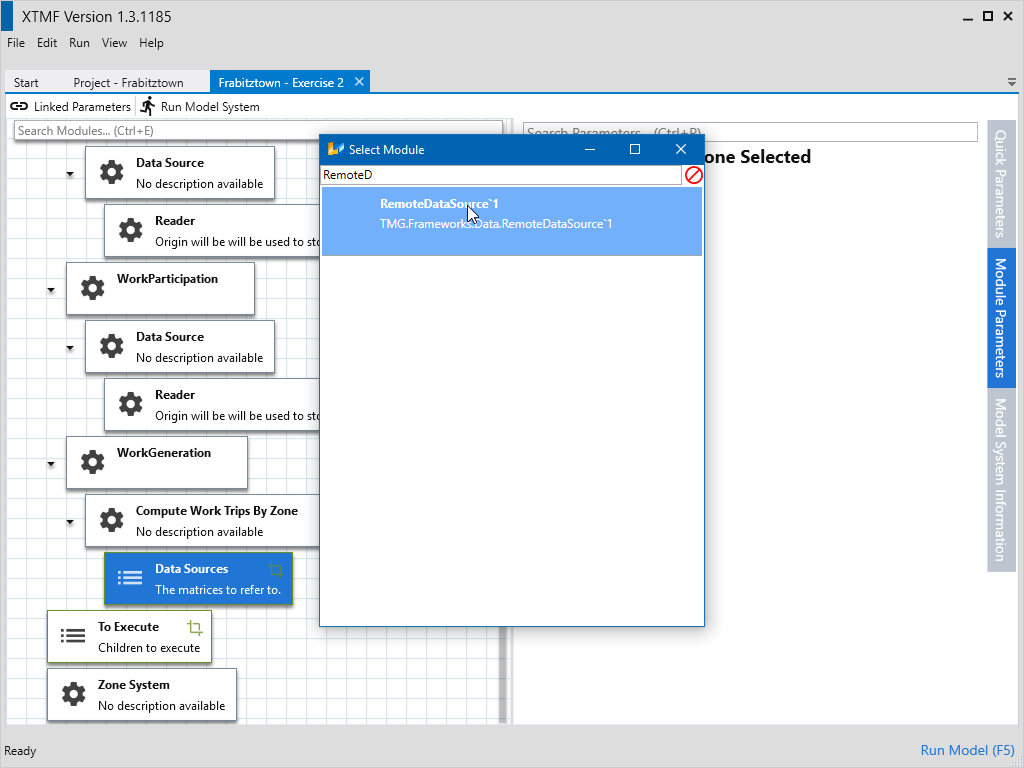
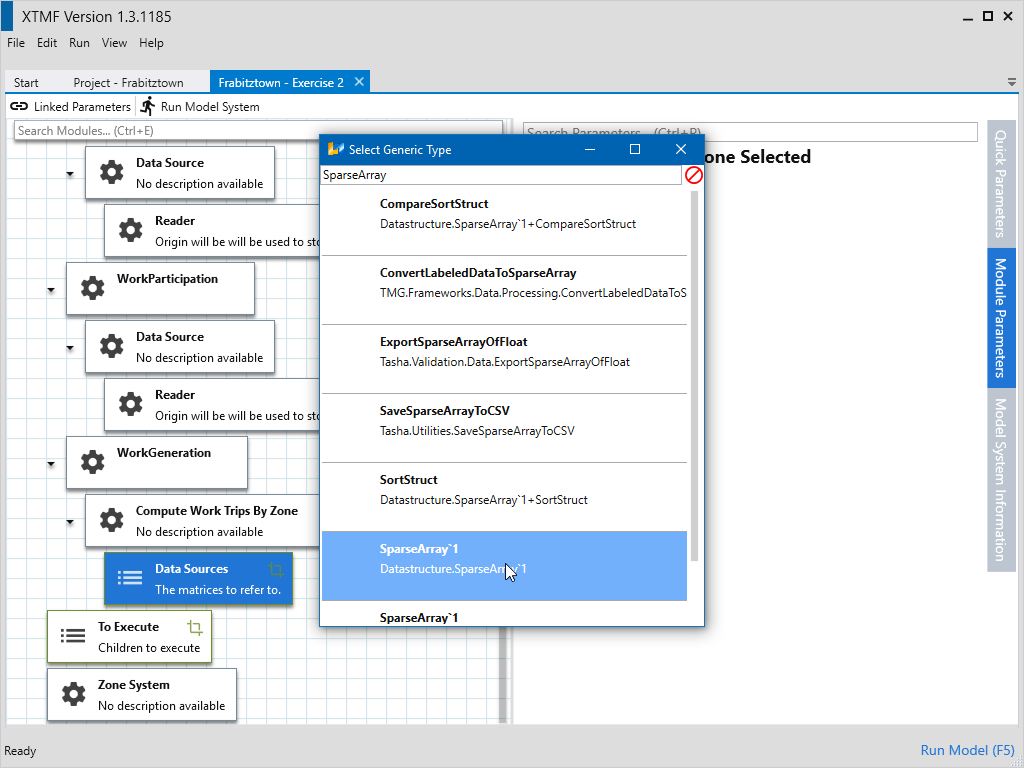
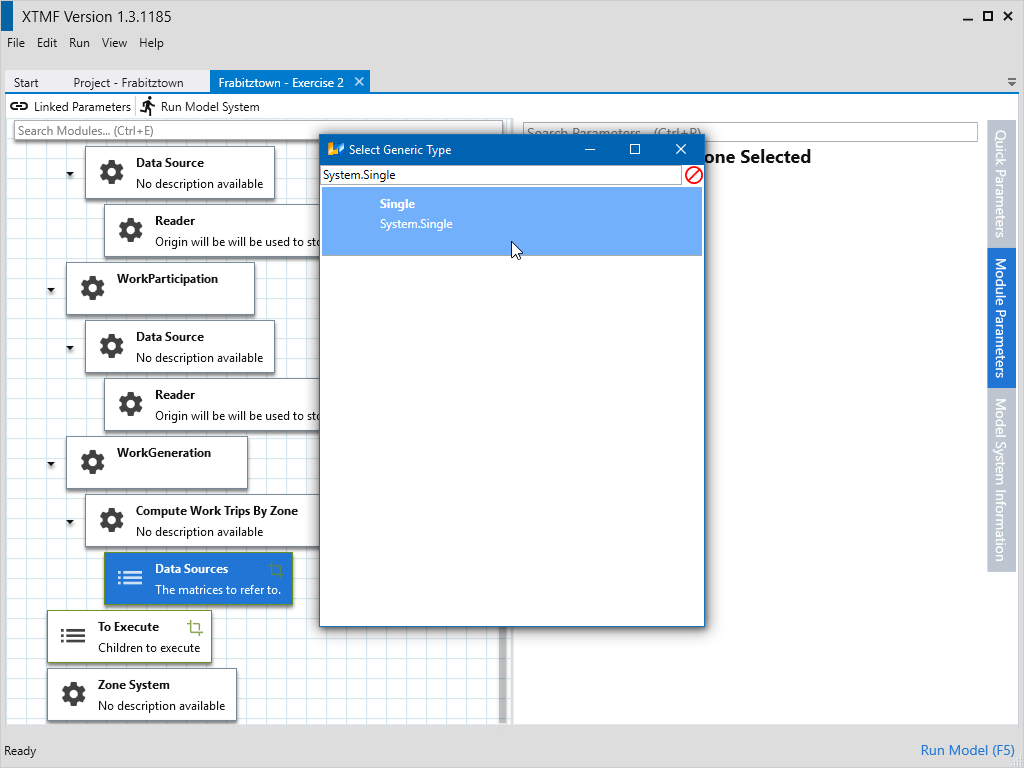
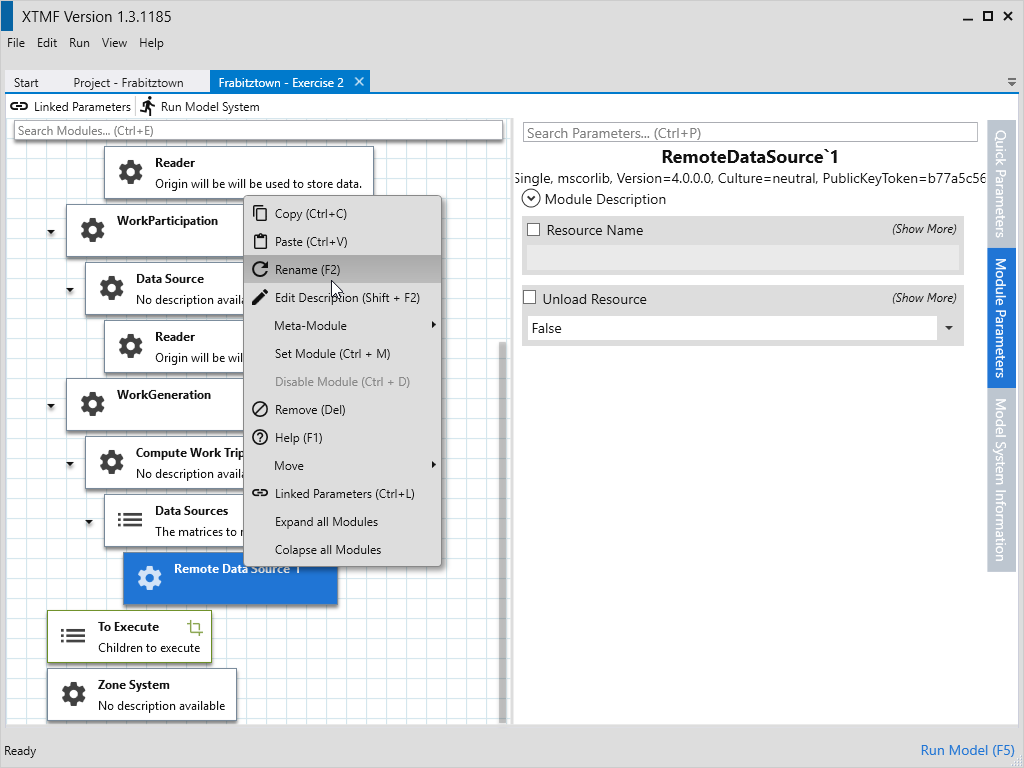
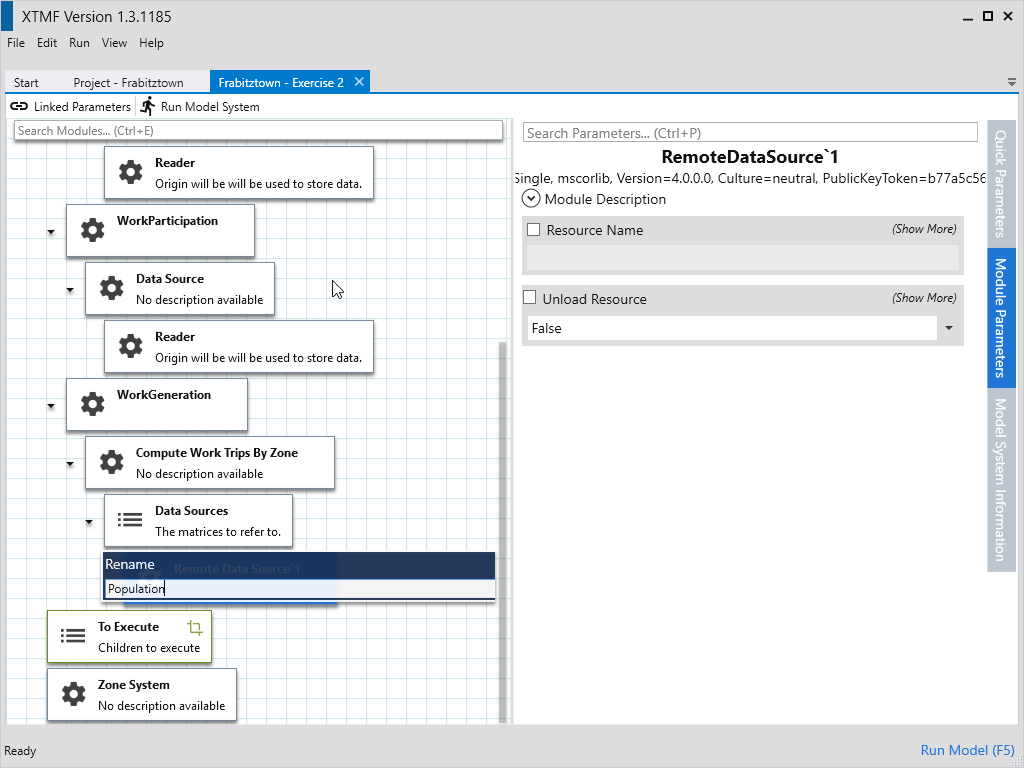
- Search and select the type “RemoteDataSource`1” a second window will come up asking for the sub-type. Search for and select the type “DataStructure.SparseArray`1”. Another window will come up for the subtype of the SparseArray. Now search and select the type “System.Single”.
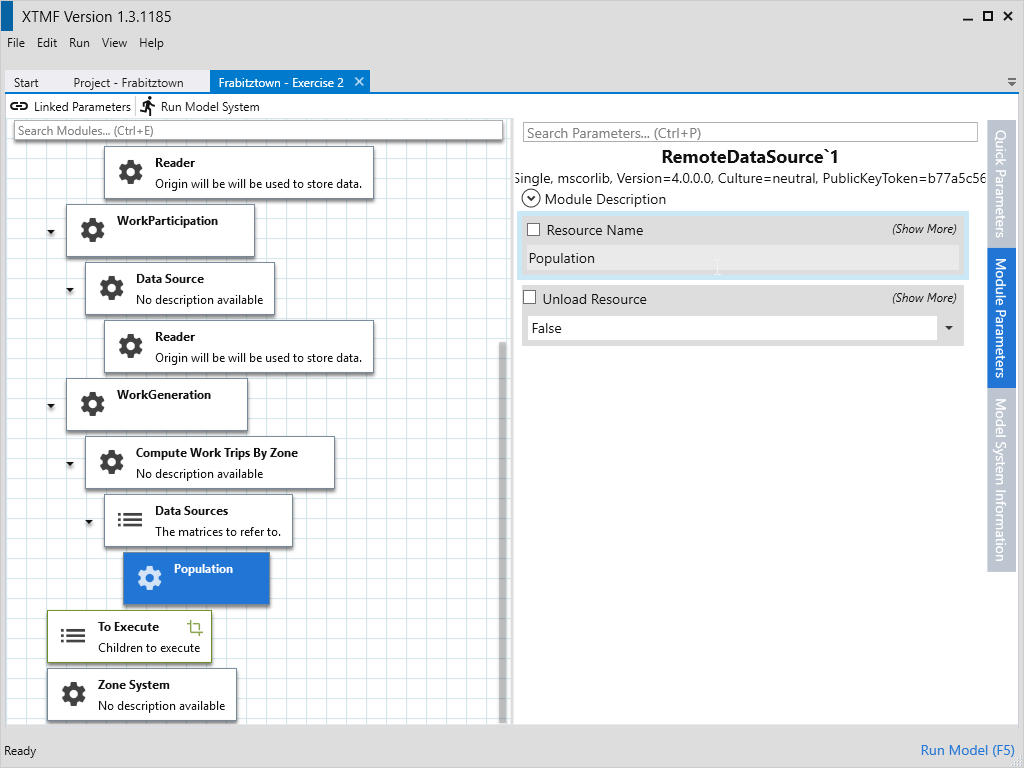
- Rename this module “Population”
- Change the parameter “Resource Name” to “Population”
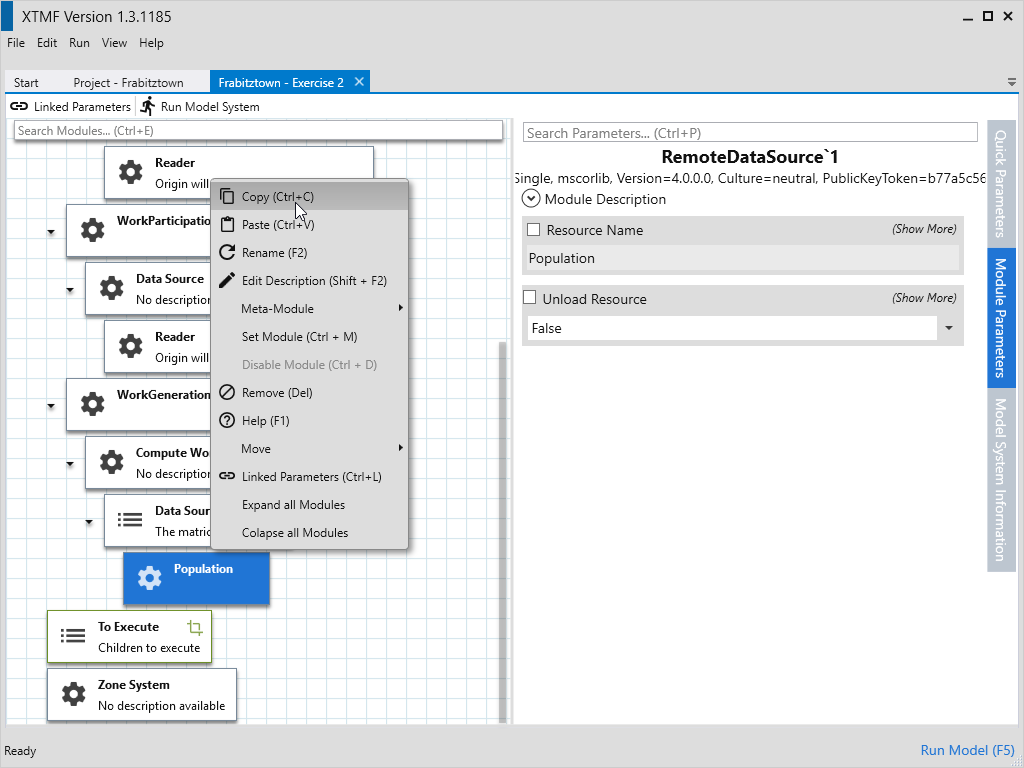
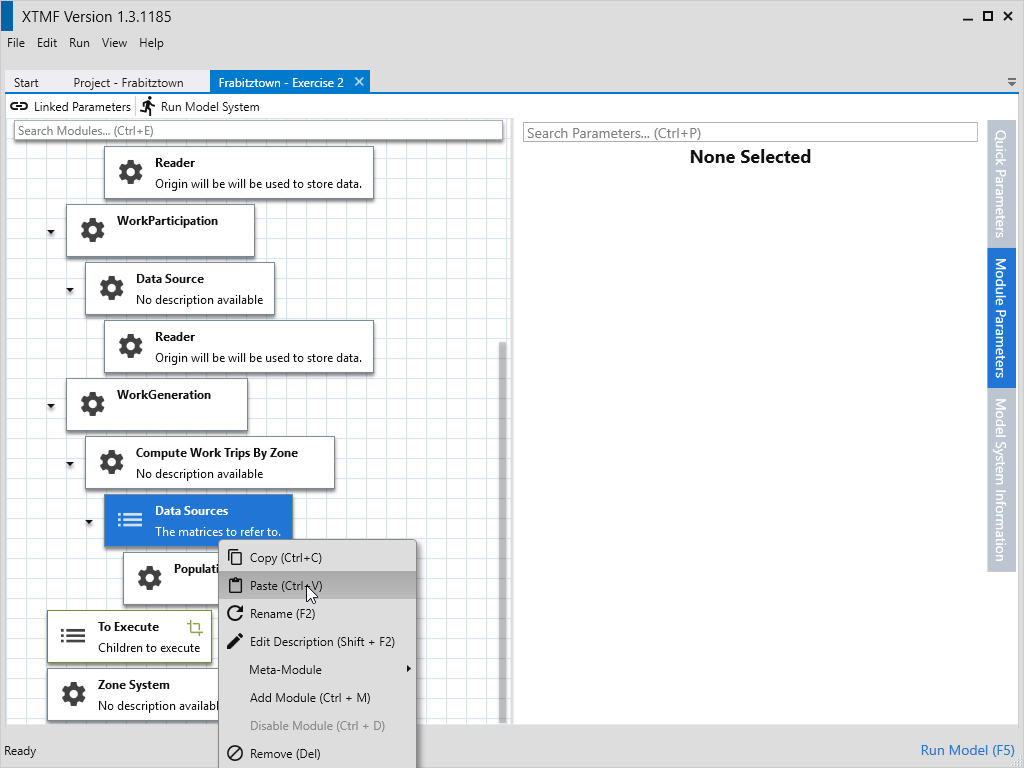
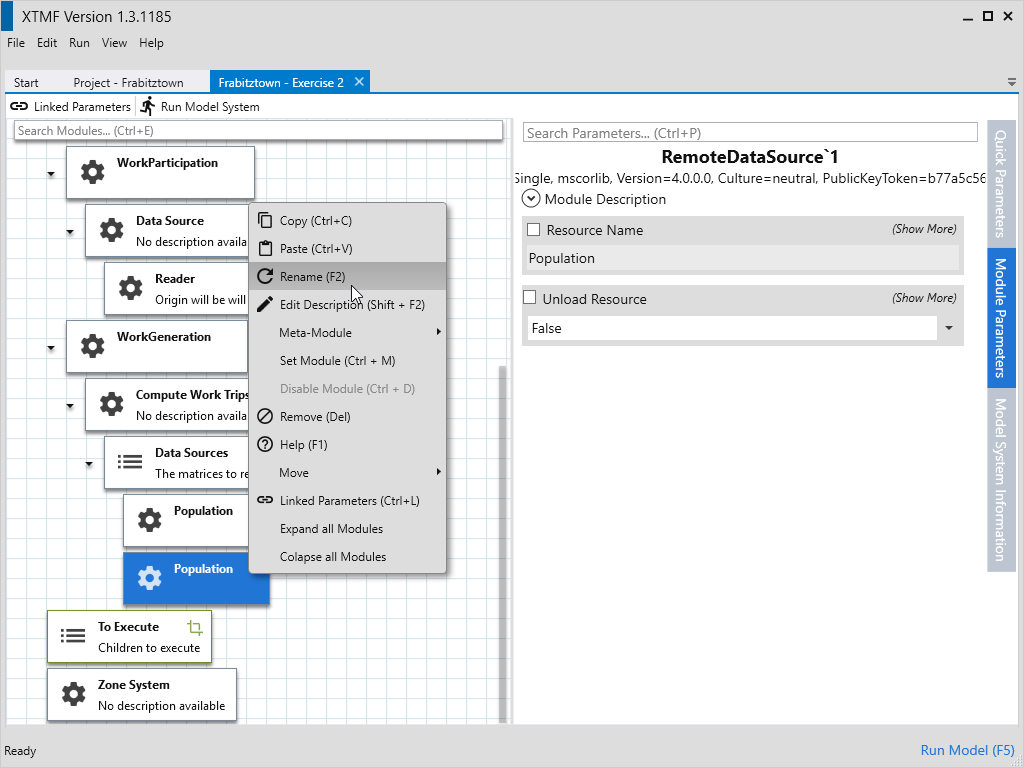
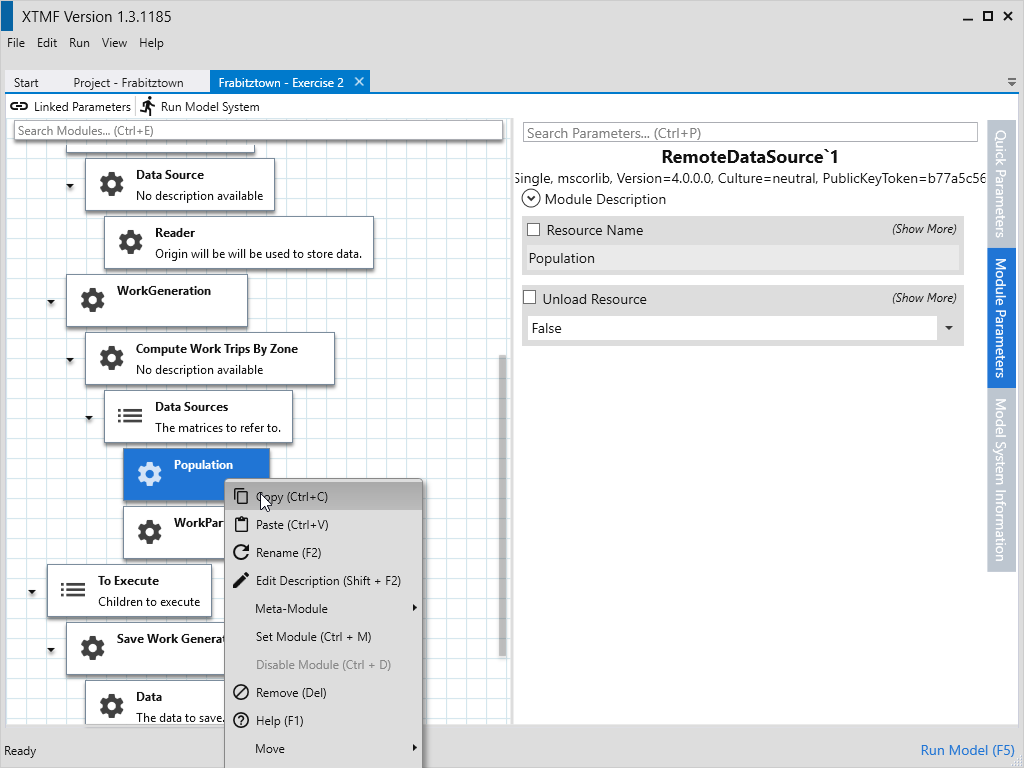
- Copy Population and paste it into Compute Work Trips By Zone’s Data Sources.
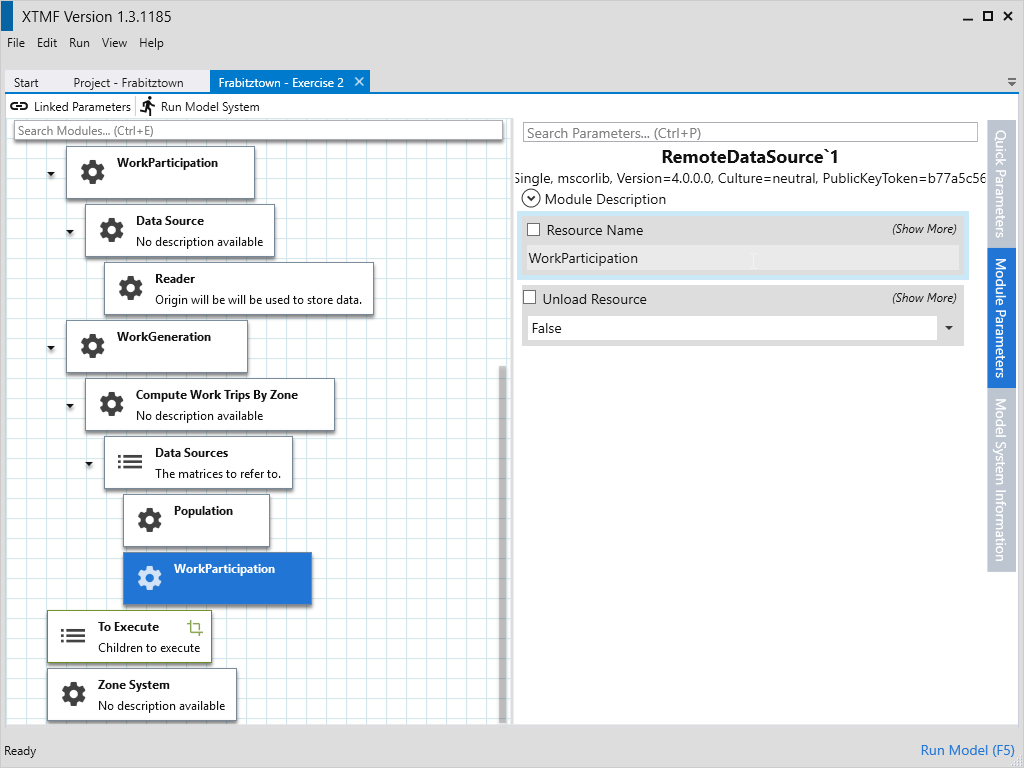
- Rename the second copy of Population to “WorkParticipation”
- Change “WorkParticipations”’s parameter “Resource Name” to “WorkParticipation”
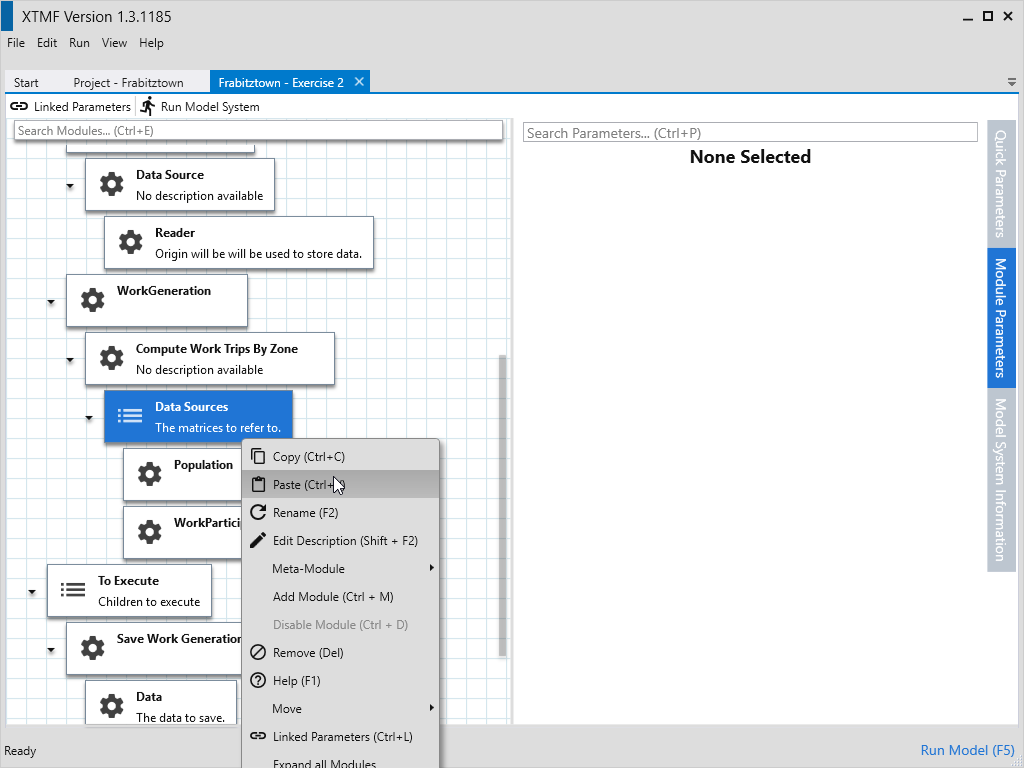
- Copy Population and paste it into Compute Work Trips By Zone’s Data Sources.
- Rename the second copy of Population to EmploymentRate
- Change “EmploymentRate”’s parameter “Resource Name” to EmploymentRate

1.8 - Calculate Work Generation Expression
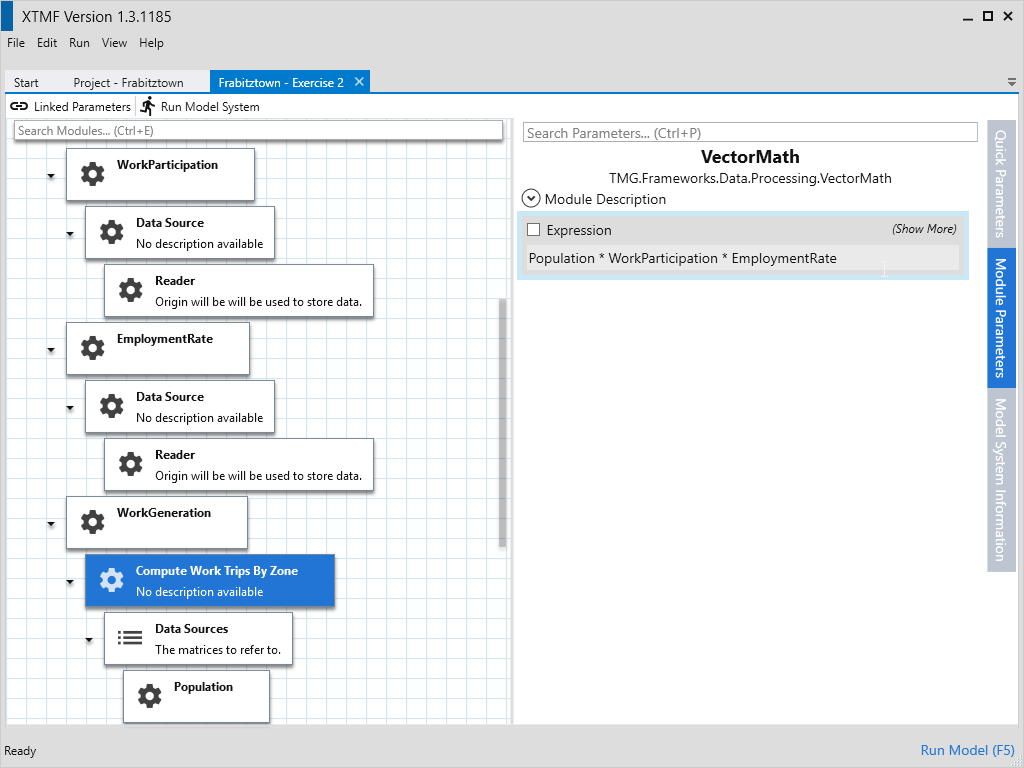
- Select the module ‘Compute Work Trips By Zone’
- Set expression to Population * WorkParticipation * EmploymentRate
1.9 - Create Save Work Generation
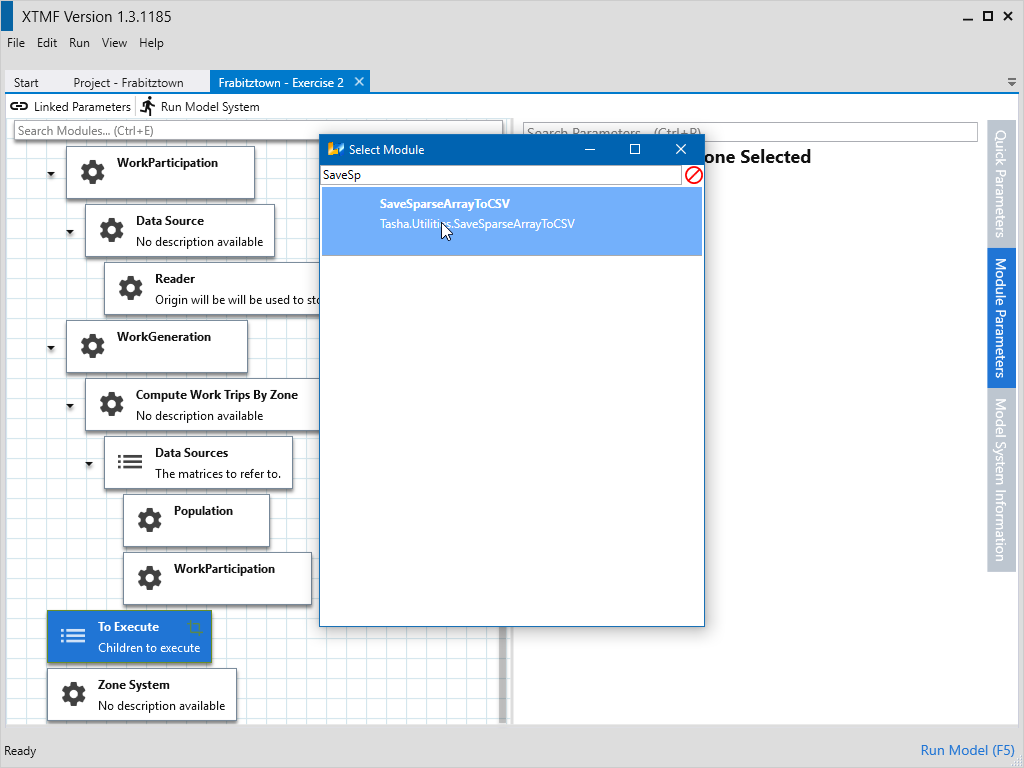
- Select To Execute and add a module of the type “SaveSparseArrayToCSV”
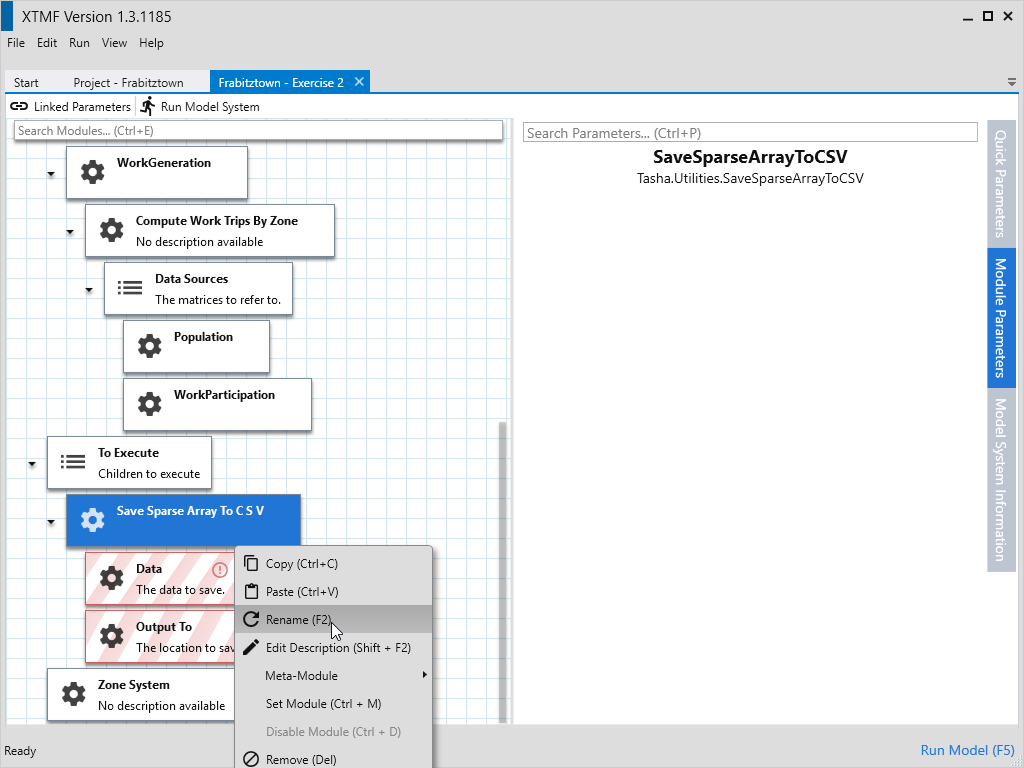
- Select the created module and rename it to “Save Work Generation”
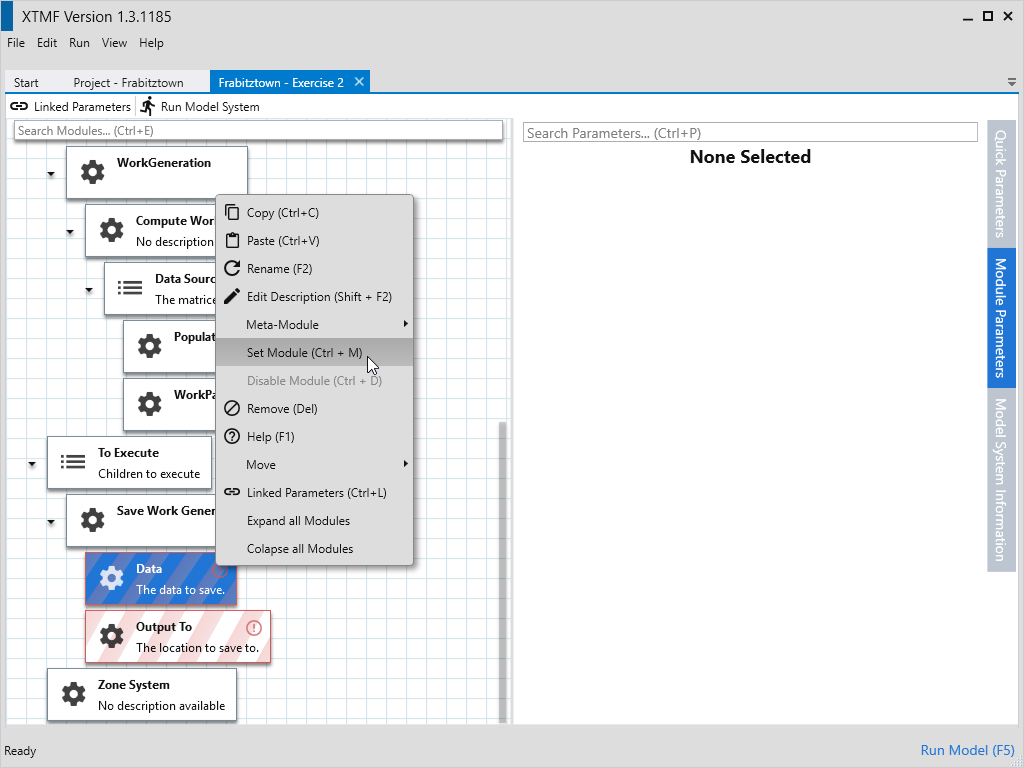
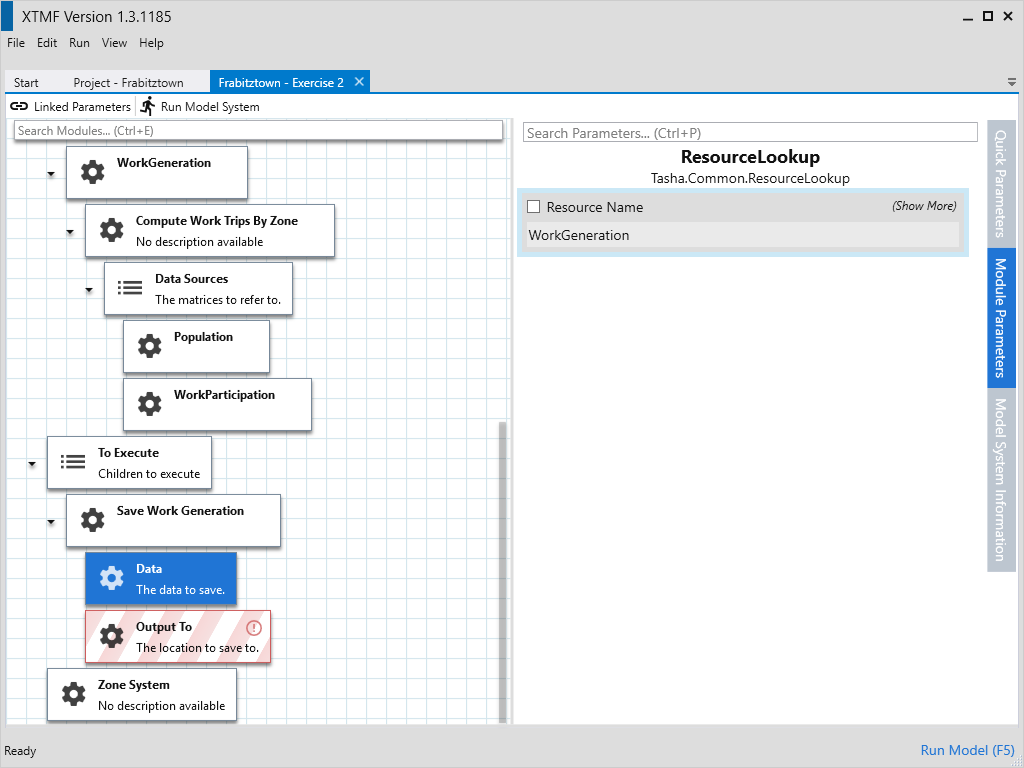
- Expand the module and select Data.
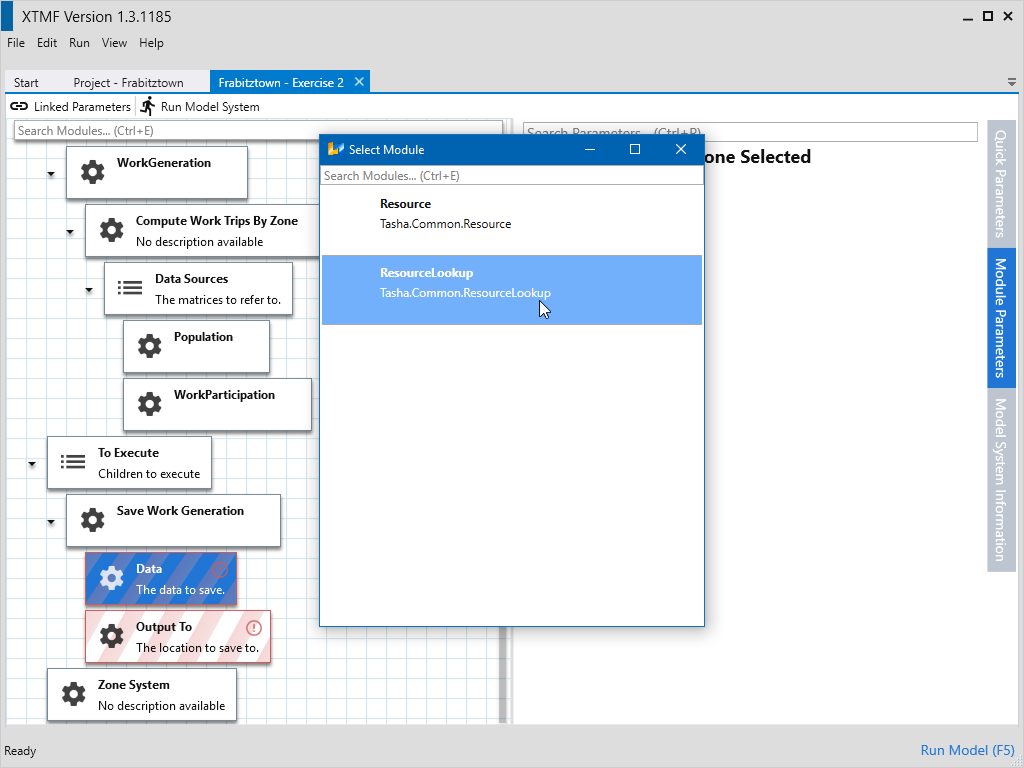
- Set the module type of Data to “ResourceLookup”
- Change the parameter “Resource Name” to “WorkGeneration”
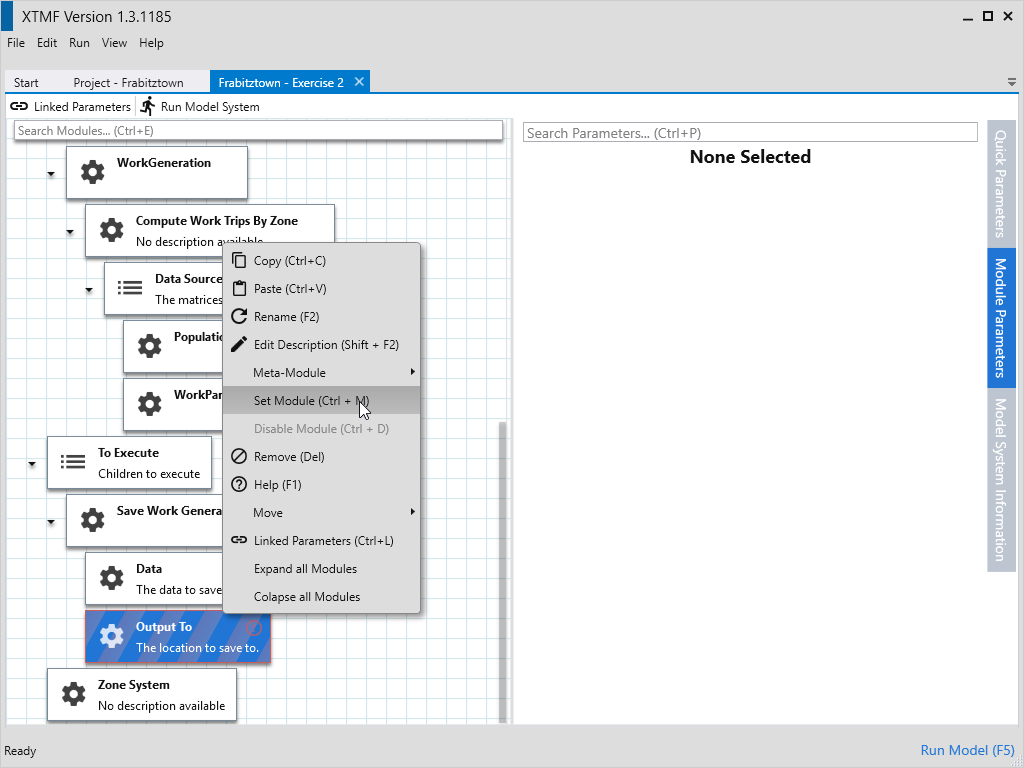
- Select the module “Output To”
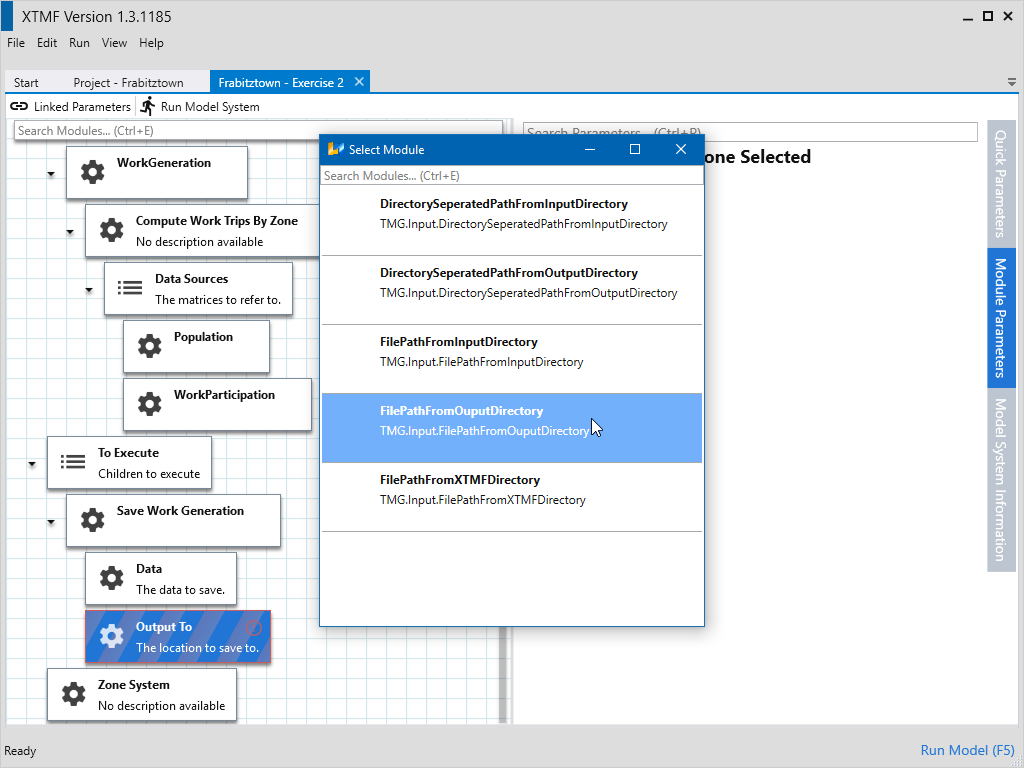
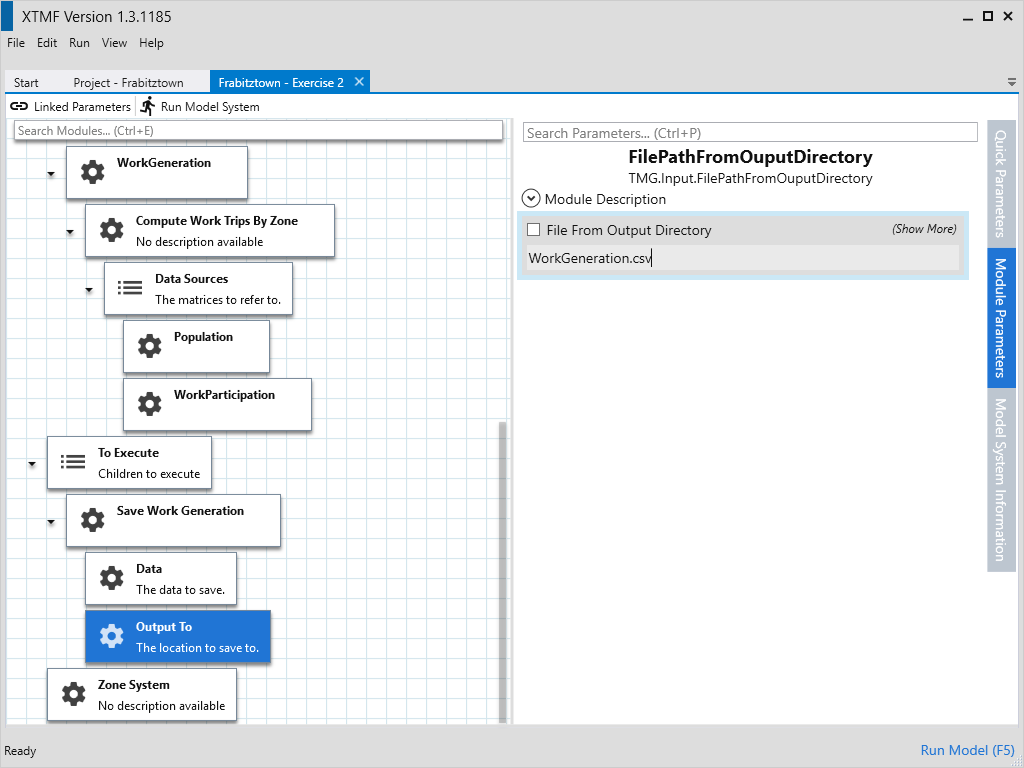
- Set the module type of “Output To” to “FilePathFromOuputDirectory”.
- Change the value of the parameter “File From Output Directory” to “WorkGeneration.csv”
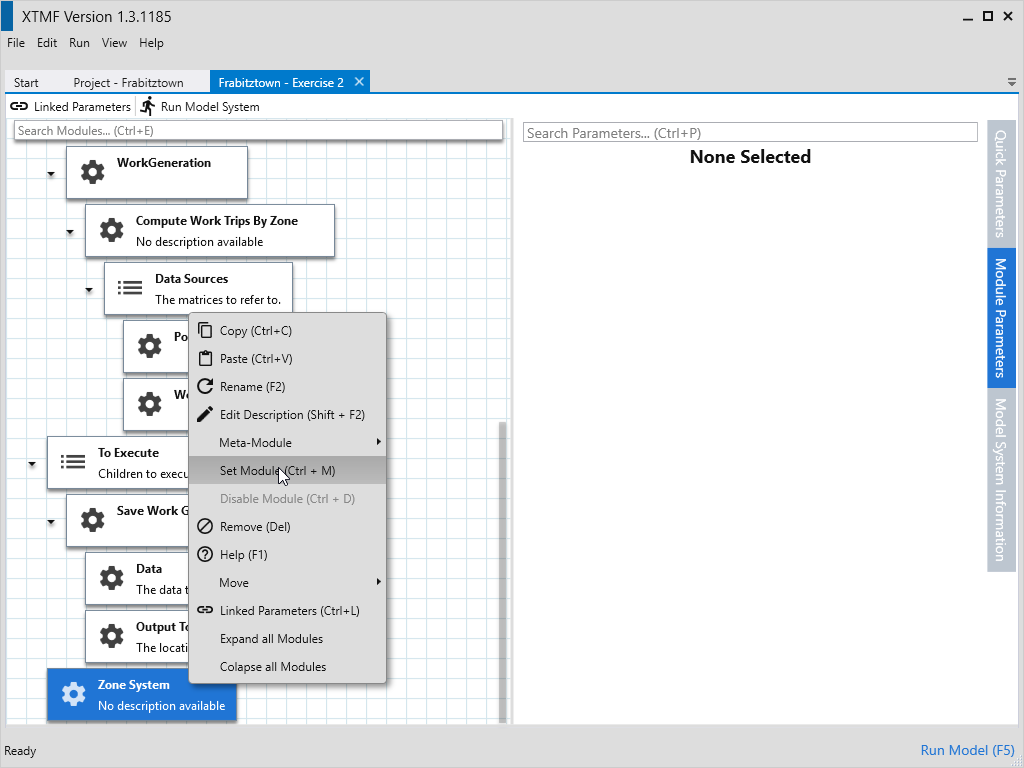
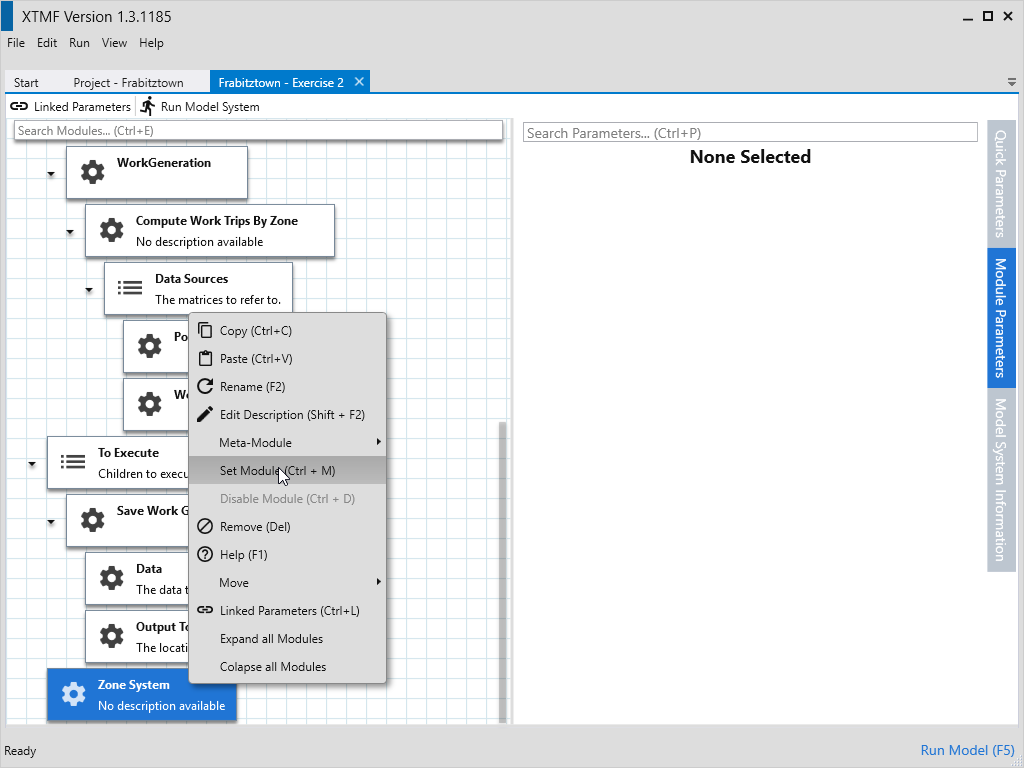
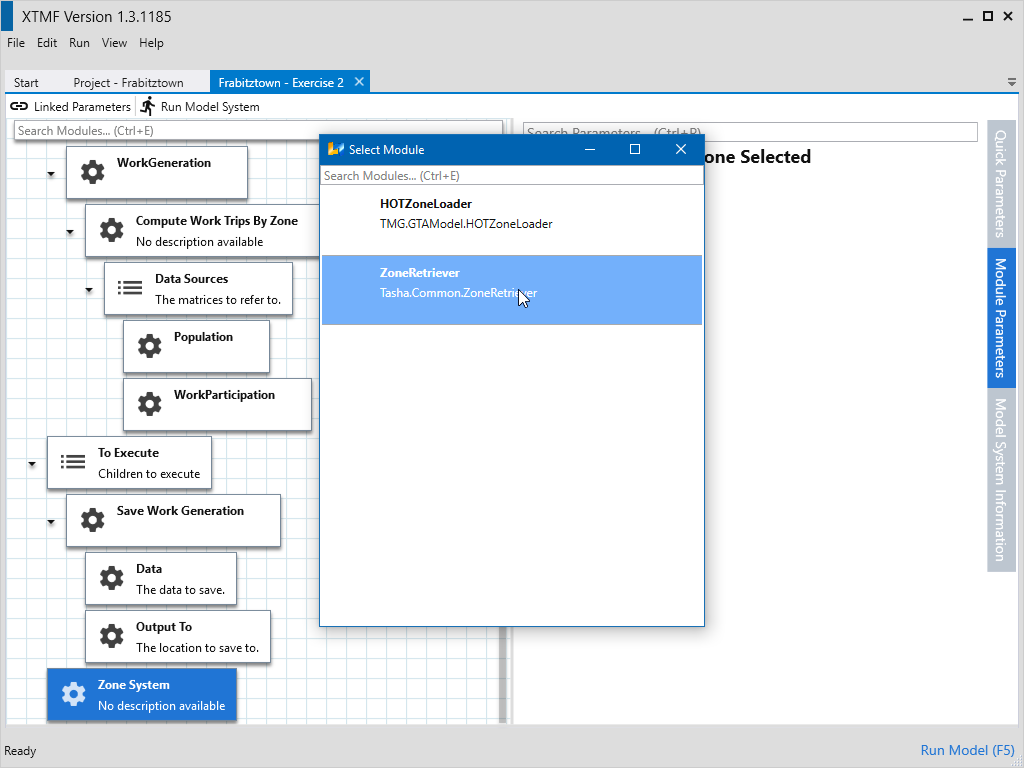
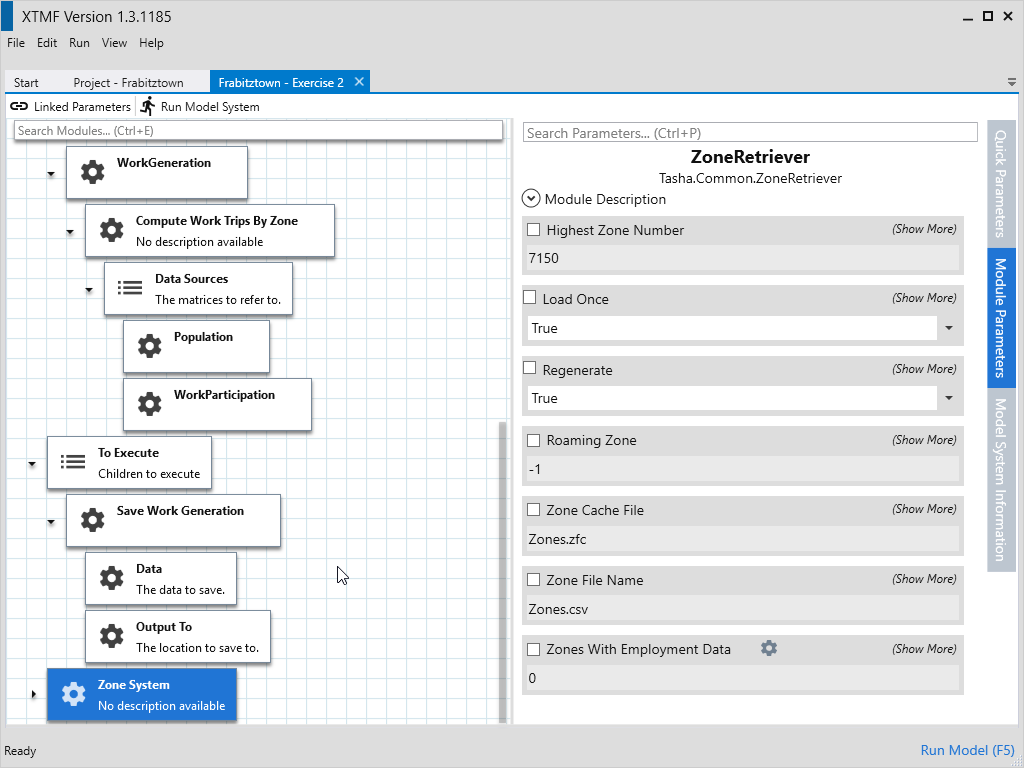
- Create Zone System
- Select the module named “Zone System”
- Set the module type to “ZoneRetriever”